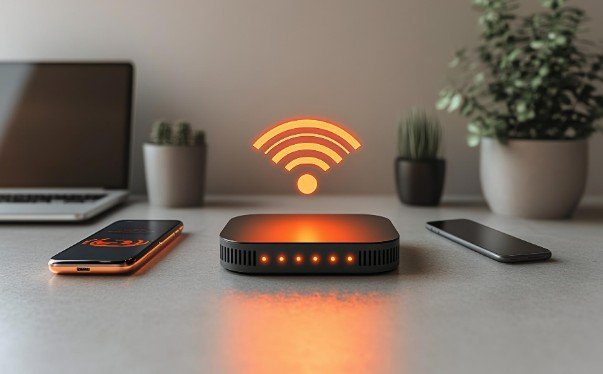
My laptop once struggled to load a video while a phone beside it streamed without a pause. That kind of mismatch makes it tempting to blame the internet plan, but it does not tell me what is wrong. To understand why Wi-Fi is slow on one device but fast on others, I start by checking whether the slowdown follows the device, its location, or the app I am using.
A single slow device may have a weak wireless connection, an older adapter, a background download, or a setting that affects only that device. It can also be connected to a different band or mesh node. A few fair comparisons can narrow the cause before you reset anything.
First, Make Sure the Comparison Is Fair
Put the slow device and a faster one in the same room, reasonably close to the router. Connect both to the same home network. Run the same speed test on each, one after the other, and repeat it once. Pause large downloads during the tests.
The numbers do not have to match. A newer phone and an older laptop may have different wireless capabilities. Look for a consistent, substantial gap instead. Also check the activity that feels slow: if speed tests look normal but one website or app still crawls, the Wi-Fi connection may be working properly.
Next, take the slow device to another room. If it improves near the router, reception or interference deserves attention. If possible, connect it to another trusted Wi-Fi network. A problem that follows the device points toward its hardware or software; a problem that happens only on your home network may involve how that device connects to the router.
Check the Easy Causes on the Slow Device

Restart It and Look for Background Activity
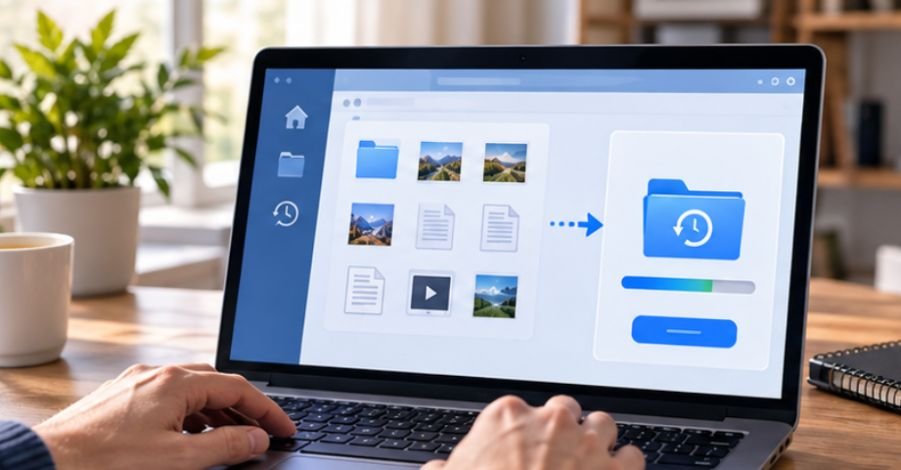
Restart the affected device, then test again. Before changing router settings, check whether it is installing updates, downloading a game, backing up photos, or syncing files to a cloud service. A Windows update may also leave temporary files behind; if storage is low, recover storage space after Windows update and test the connection again.
On Windows, Task Manager’s Network column can show which processes are using the connection. On a Mac, check the Network tab in Activity Monitor. If a transfer is running, let it finish or pause it briefly and compare performance again. A busy device can feel slow even when its Wi-Fi link is fine.
If the trouble appears in only one browser, try another browser or temporarily disable an extension you recently added. If a work VPN is active, compare performance with and without it when your workplace permits. These checks help separate a device or app problem from a wireless one.
Check Distance, Obstacles, and Antennas
A desktop beneath a metal desk or behind a monitor may receive a weaker signal than a phone held in the open. Move the device closer to the router for a quick test. If the improvement is dramatic, examine its usual position before buying new equipment.
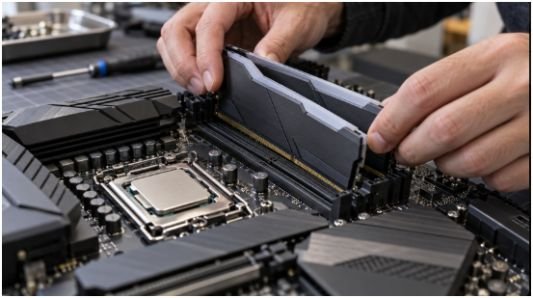
For a desktop PC, make sure its external Wi-Fi antennas are attached securely. If they have movable bases, try placing them above or beside the desk rather than behind the computer case. In a mesh setup, one device may connect to a distant node while another uses a nearer one; your mesh app may show which node each device is using.
Compare the Wi-Fi Band
Two devices showing the same network name can connect differently. A device on 2.4 GHz may have better reach through walls, while 5 GHz can offer higher speeds at shorter distances. Some routers also provide a 6 GHz band for compatible devices.
Check the connected band in the device’s network details or router app. If your router offers separate network names for its bands, test an available alternative. Do not assume the fastest-sounding band will work best from every room. Compare actual performance where you use the device.
Use Ethernet to Narrow Down the Problem

If the slow computer has an Ethernet port and you have a cable available, connect it directly to the router. Turn off Wi-Fi on that computer while testing so you know the traffic is using the cable.
If Ethernet is fast but Wi-Fi remains slow, focus on wireless reception, antennas, the connected band, the adapter, and its driver. If both connections are slow on that computer while other devices work normally, investigate background activity, VPN software, and the device itself. This test narrows the possibilities; it does not identify a faulty part on its own.
Move to Settings and Updates Only If Needed
Forget the home network on the affected device, then reconnect using the password. Check for operating system updates and, on a Windows PC, look for a suitable Wi-Fi driver from the computer or adapter manufacturer. If the problem began after a driver change, the previous version may be worth investigating.
Review power-saving settings if a laptop is noticeably slower on battery than when plugged in. A network reset is a later step because it can remove saved networks and other connection settings. Record the passwords and settings you need before using it.
Finally, check the router app for a device-specific speed limit, priority rule, or connection problem. Router firmware updates may help with compatibility. If several devices become slow under the same conditions, broaden the investigation to the router and internet connection.
Frequently Asked Questions
1. Why Wi-Fi Is Slow on One Device but Fast on Others?
The devices may differ in signal strength, connected band, wireless hardware, or background activity. Compare them in the same place, then see whether the slowdown follows the affected device to another room or network.
2. Should I Restart the Router?
Start with the slow device when everything else works normally. Restarting the router may help if multiple devices are affected or the device has a connection problem specific to your home network.
3. Does a Faster Internet Plan Fix One Slow Device?
Usually, it is better to identify the bottleneck first. A faster plan cannot repair a weak antenna, an unsuitable connection, or software consuming bandwidth on one computer.
What I Would Check Last
When only one device is slow, I would work from the simplest evidence: a fair side-by-side test, a check for background activity, a move closer to the router, and an Ethernet comparison if available. That sequence tells me where to focus without changing every setting at once. I would consider replacing an adapter or upgrading equipment only after those checks show a persistent hardware limitation.