
A backup you have to remember to run is not really automatic. The safest Windows setup copies important files on a schedule, keeps at least one copy away from the PC, and proves that those files can be restored. If you are learning how to schedule automatic backups on a pc, the goal is not simply to click “Back up.” It is to build a routine that still works after a failed drive, accidental deletion, theft, or ransomware.
First, Choose the Type of Protection You Actually Need
Windows users often mix up three different ideas: file backup, cloud synchronization, and system recovery.
File History saves versions of personal files to an external drive or network location. OneDrive synchronizes selected folders with Microsoft’s cloud. Windows Backup can preserve settings, credentials, app information, and folders associated with a Microsoft account.
They overlap, but they are not interchangeable. UC Berkeley’s Information Security Office distinguishes file-sync services from traditional backups that can support broader recovery.
The Simplest Built-In Method: File History
For many home users with an external drive, File History is the most straightforward Windows option.
Before deciding which backup method to use, it is also worth learning how to choose backup software for a home computer based on storage needs, version history, recovery options, and protection against different types of failure.
1. Connect a Dedicated Backup Drive
Use an external SSD or hard drive with room for several versions of important files. A drive that barely fits today’s data can fill quickly.
For a family PC containing years of photos or large work files, capacity matters almost as much as frequency. Multiple historical versions can make a backup substantially larger than the files currently stored on the computer.
2. Turn On File History
Open Control Panel, choose System and Security, then open File History. Select an external drive or network location and turn the feature on.
Microsoft’s current support documentation says File History automatically protects personal files and libraries using an external drive or configured network location. Important folders outside the locations being protected should be added deliberately rather than assumed to be covered.
3. Match the Schedule to Your Tolerance for Loss
Open File History’s advanced settings and review how frequently versions are saved and how long Windows retains them.
A useful rule is to back up more often than you can afford to lose work. If losing a full day of edits would be painful, a once-a-day backup is too slow. For frequently changing documents, hourly or similarly frequent versioning makes more sense.
Where the Older Backup and Restore Tool Fits

Some Windows PCs still expose Backup and Restore (Windows 7) through Control Panel. This legacy utility can be used to choose a destination, specify what should be protected, and configure recurring backups.
It can still be useful, particularly for people familiar with traditional Windows backup workflows, but I would not make it the only protection layer on a current PC.
File History is better suited to recovering previous versions of personal files, while newer Windows Backup and cloud-based options address other parts of the recovery process.
Add OneDrive as a Second Layer
OneDrive is valuable because selected folders can continue syncing even when an external backup drive is not attached.
Open the OneDrive cloud icon in the notification area, select Settings, open Sync and backup, and choose Manage backup. You can then enable supported folders such as Desktop, Documents, and Pictures.
That is useful for laptops because the second copy is not beside the computer if the device is lost or stolen.
Cloud storage should not be your only safeguard, however. The Cybersecurity and Infrastructure Security Agency recommends frequent backups and advises users with external drives to disconnect them when they are not actively being used, reducing exposure to ransomware.
A Practical Automatic Backup Schedule
The best frequency depends on how quickly your files change.
| Data type | Suggested schedule | Extra protection |
| Work, school, active documents | Hourly or several times daily | Cloud plus external drive |
| Photos and personal records | Daily | External drive plus off-site/cloud copy |
| Large video or creative projects | After major work sessions | High-capacity external drive plus off-site copy |
| Settings and less-changing files | Weekly | External or image-style backup |
Large media libraries consume backup capacity quickly. If the PC is also used for editing, this resource on RAM needs for video editing workstations can help when sizing a workstation for demanding projects.
The important point is that the schedule should reflect the rate at which irreplaceable data changes, not simply what Windows offers as a default.
Use the 3-2-1 Idea as a Quick Safety Test
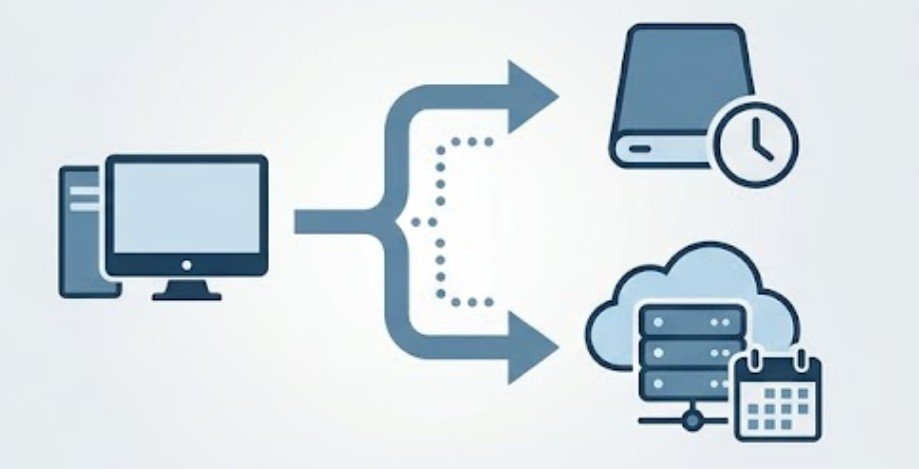
A widely used backup principle is to maintain three copies of important information, using more than one storage method, with one copy kept separately from the primary computer.
For a home PC, that could mean the original files, an automatic copy on an external drive, and another copy stored off-site or in a cloud service.
University of Wisconsin guidance recommends combining online and offline backup approaches and stresses that users should test their backup solution to confirm files can actually be recovered. This is especially important with ransomware. A permanently attached drive may technically be a separate disk, but it can still be reachable from compromised software.
Test a Restore Before You Trust the Schedule
A green “completed” message does not prove every important file is recoverable.
Once a month, restore a file to a different folder and open it. Then check that recent versions exist and that the backup destination still has enough free space.
The National Institute of Standards and Technology has long treated backup and contingency planning as part of computer security rather than simple convenience.
The University of Rochester also recommends making secure backup copies of important computer data and considering another copy in a separate location.
Testing answers the question that backup dashboards cannot: could you recover the file if the original disappeared right now?
Four Mistakes That Silently Weaken Automatic Backups
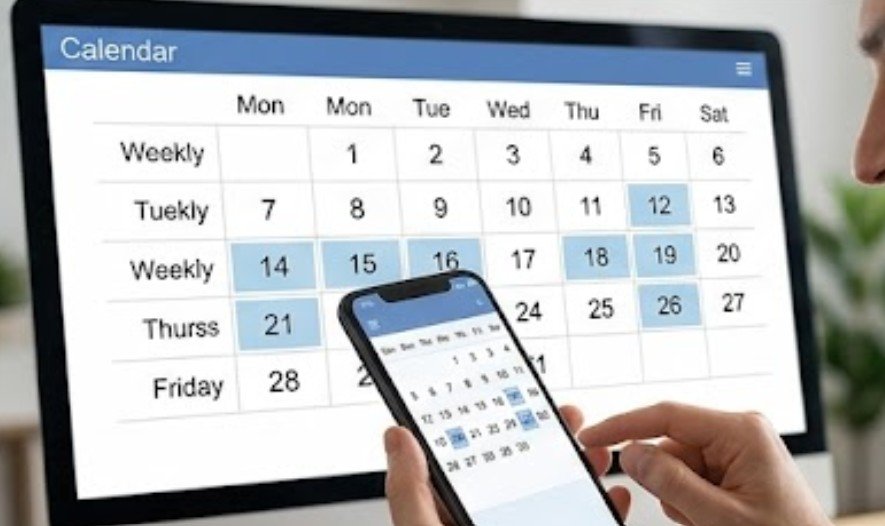
The first is leaving the external drive disconnected for weeks. Windows cannot write a scheduled backup to hardware it cannot see.
The second is assuming every cloud folder is protected. Files stored outside OneDrive-managed locations may never upload, so confirm which folders actually appear in the service.
The third is ignoring capacity. Versioned backups grow over time. Check free space and retention settings before the drive becomes completely full.
The fourth is treating synchronization, RAID, or a second internal drive as a complete backup strategy. Those technologies can improve convenience or availability, but they do not automatically protect against ransomware, accidental deletion, theft, or physical damage to the entire computer.
If you download files as part of your regular workflow, it is also worth learning how to scan a file before opening it so potentially malicious downloads do not compromise the computer or its connected backup storage.
Frequently Asked Questions
1. How often should I schedule backups on a Windows PC?
For frequently changing files, hourly or several-times-daily backups are safer. Daily backups may suit less active personal files, while system-level backups usually need less frequent runs.
2. Can Windows automatically back up to an external hard drive?
Yes. File History can automatically save versions of supported personal files to an external drive or network location once it has been configured.
3. Is OneDrive the same as a full PC backup?
No. OneDrive mainly provides cloud synchronization and folder protection. It is useful, but it does not replace every local, offline, or full-system backup method.
4. Should a backup drive stay connected all the time?
Not always. Disconnecting an external backup drive between backup sessions can reduce its exposure to ransomware and other malware capable of reaching attached storage.
Make the Schedule Prove Itself
The strongest answer to how to schedule automatic backups on a pc is not a single Windows switch. It is a routine: automatic copies, another storage location, enough capacity, and regular restore tests. Configure File History or another scheduled backup method, add cloud protection for important folders, and restore a test file every month. The moment that matters is not when Windows reports that the backup finished. It is the day something disappears and you can recover it quickly, intact, and without guessing.
Leave a Reply