An older computer can have enough RAM and storage for a program and still refuse to run it. The hidden blockers are often processor features, Windows version, 32-bit versus 64-bit architecture, graphics support, drivers, or security requirements.
That is why using a software compatibility checker for older computers should involve more than pressing one “check” button. No single utility reliably tests every Windows program. The most accurate approach combines Windows compatibility tools with the software publisher’s requirements and a quick hardware check. Here is how to do it without guessing.
Compatibility Is No Longer Just About RAM and Processor Speed
Years ago, checking software compatibility often meant comparing processor speed, memory, and free disk space.
Modern applications can impose much narrower requirements. A program may require Windows 11, a 64-bit processor, DirectX 12, AVX instructions, a specific graphics driver, TPM support, or a recent .NET runtime.
Operating-system support matters especially on aging PCs. Microsoft ended standard Windows 10 support on October 14, 2025, meaning ordinary Windows 10 installations no longer receive free security updates from Microsoft.
Security support also affects the wisdom of running modern programs on old hardware. The U.S. Cybersecurity and Infrastructure Security Agency warns that outdated operating systems and applications can become entry points for attackers and recommends replacing or isolating unsupported legacy systems. Compatibility, therefore, has two questions: “Will it run?” and “Can it run safely?”
The Most Useful Compatibility Checkers for an Older PC
Different tools answer different compatibility questions.
Microsoft PC Health Check
Microsoft’s PC Health Check is the logical first stop when the operating system itself is the compatibility concern.
It evaluates whether a Windows 10 machine meets Windows 11 requirements and reports reasons a device may not qualify. It can also show device information, storage status, Windows Update status, battery health on supported laptops, and startup information.
It is frequently described as a general compatibility checker, but that description goes too far. PC Health Check does not tell you whether Photoshop, accounting software, an engineering package, or a particular game will perform acceptably.
WhyNotWin11 Gives More Detail
WhyNotWin11 is an open-source utility designed to explain why a PC does or does not satisfy Windows 11 requirements.
Instead of producing only a general pass-or-fail result, it checks individual requirements. Its project documentation shows support for checking older Windows machines and provides separate results that can make diagnosing an incompatible component easier.
Use it as a diagnostic companion rather than treating a third-party utility as the final authority. Microsoft’s published requirements remain the reference point for Windows eligibility.
Windows Program Compatibility Troubleshooter
Sometimes the problem is reversed: the computer is newer, but the software is old.
Microsoft’s Program Compatibility Troubleshooter can test settings intended to help older applications run under Windows 10 or Windows 11. Microsoft specifically recommends it for programs that stopped behaving correctly after Windows changes.
It can help with an application that installs but crashes, displays incorrectly, or expects behavior associated with an earlier Windows release.
It cannot overcome every limitation. A genuinely incompatible driver, obsolete hardware dependency, unsupported processor architecture, or missing low-level component may still prevent the application from working.
The Five-Minute Compatibility Test I Would Use
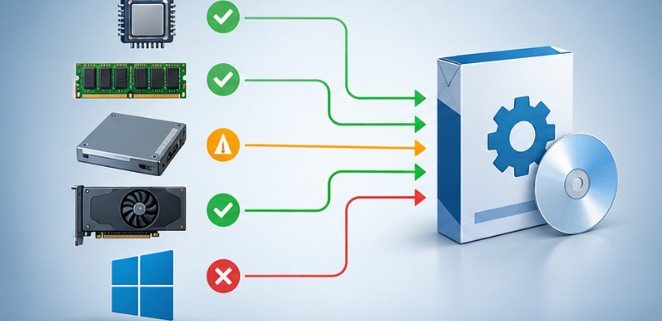
A reliable check requires comparing the computer with the specific program rather than trusting a generic green check mark.
1. Identify Your Exact Windows Version
Press Windows + R, enter winver, and note the Windows edition and version.
Then open Settings > System > About and record:
Processor
Installed RAM
System type, especially 32-bit or 64-bit
Windows edition
For graphics-intensive software, also check the GPU in Task Manager under Performance.
2. Find the Publisher’s Minimum Requirements
Go to the program developer’s official website and find its current system requirements.
Check at least these six items:
Operating system
Processor or CPU generation
RAM
Available storage
Graphics hardware
32-bit or 64-bit architecture
Also look for less obvious requirements such as DirectX, .NET, OpenGL, TPM, specific CPU instruction sets, or dedicated video memory.
Mozilla’s published Firefox requirements illustrate why this matters. Different Firefox generations have supported different versions of Windows, and older operating systems have eventually been moved out of mainstream support.
3. Compare Recommended Requirements, Not Just Minimums
“Minimum” usually means the program can start under supported conditions. It does not promise pleasant performance.
A video editor might technically launch with 8GB of RAM yet become frustrating during 4K editing. A 3D program may install with integrated graphics while advanced effects remain painfully slow.
For an aging computer, recommended specifications provide a much better practical benchmark.
4. Check Drivers and Supporting Software
An application failure is not always caused by weak hardware.
Graphics drivers, printer drivers, runtimes, browser components, or Windows services can also create compatibility problems. Microsoft notes that architectural changes, security changes, and updated system requirements can cause programs that once worked to behave differently on later Windows releases.
5. Test Before Buying When Possible
Use a legitimate trial, free edition, benchmark, or vendor compatibility utility when one is available.
Avoid downloading mysterious “compatibility scanners” promising to repair hundreds of problems. The Federal Trade Commission recommends downloading software only from sources you know to protecting computers from malware and trust and keeping operating systems, browsers, and security software updated.
Passing a Compatibility Check Does Not Mean the PC Is Healthy
This is one of the biggest misconceptions around old computers.
Suppose an application requires 8GB of RAM, and your PC has exactly 8GB. Technically, the requirement is satisfied. But Windows, background programs, antivirus software, and browser tabs also consume memory.
The same problem applies to storage. Having 20GB free for a 15GB application leaves little room for temporary files, updates, caches, and Windows operations.
Carnegie Mellon University’s Software Engineering Institute has documented a broader version of this problem with legacy systems: aging technology can continue functioning while becoming increasingly difficult to maintain, update, integrate, and secure.
NIST likewise treats unsupported system components as a security concern and recommends replacing components when vendor support is no longer available or establishing risk-mitigation measures when replacement is impossible.
When Upgrading the Computer Makes More Sense

Compatibility workarounds are worthwhile when the limitation is minor: insufficient RAM, a nearly full SSD, an outdated graphics driver, or a configurable application setting.
They become less attractive when the processor is unsupported, the operating system no longer receives normal security support, required drivers do not exist, or several important programs are dropping support simultaneously.
If that point has arrived, protect your data before replacing the machine. This walkthrough explains how to move files from an old PC to a new PC without leaving important documents behind.
Frequently Asked Questions
1. What is the best software compatibility checker for older computers?
Microsoft PC Health Check is useful for Windows 11 eligibility, while publisher system requirements are better for checking individual applications. Using both provides a more reliable answer.
2. Can Windows compatibility mode make any old software work?
No. Compatibility settings can solve some Windows-version problems, but they cannot fix missing hardware features, unsupported drivers, incompatible architectures, or applications that depend on obsolete components.
3. How do I know whether my computer is 32-bit or 64-bit?
Open Settings > System > About and look for “System type.” It will identify the operating-system architecture and usually the processor architecture.
4. Is it safe to keep using software on an unsupported computer?
It may continue working, but unsupported operating systems and applications can stop receiving security fixes. Internet-connected machines deserve particular caution because unpatched vulnerabilities may remain exposed.
The Better Way to Judge an Aging PC
A software compatibility checker for older computers is most useful as evidence, not as a verdict. A green result from one utility cannot account for every driver, application dependency, security issue, or real-world performance bottleneck.
Start with the software publisher’s requirements, inspect your actual hardware, use PC Health Check or WhyNotWin11 for operating-system questions, and test the application when possible. If your computer repeatedly sits at the minimum threshold—or depends on unsupported software—the question is no longer simply whether another program will launch. It is whether keeping that machine alive still makes practical and security sense.
Leave a Reply