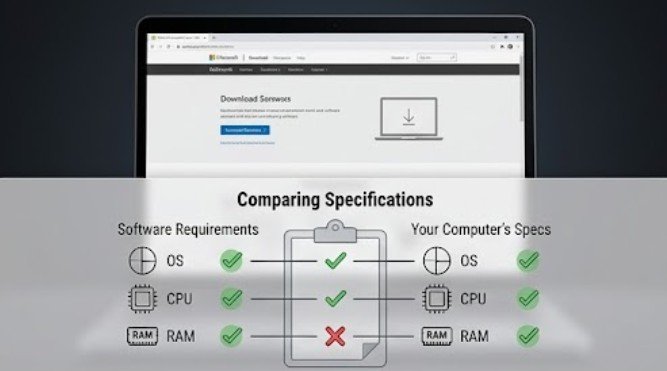
A computer can have plenty of storage and still be completely unable to run a program. The problem is that software compatibility depends on several pieces fitting together: the operating system, processor architecture, memory, graphics hardware, available storage, and sometimes even specific drivers or security features.
Knowing how to tell if software will run on your computer before downloading a multi-gigabyte installer can save time, prevent failed installations, and help you decide whether an upgrade is actually necessary.
The process is simpler than the technical language on software product pages makes it look. You mainly need two lists: what your computer has and what the software requires.
Start With the Software’s Official System Requirements
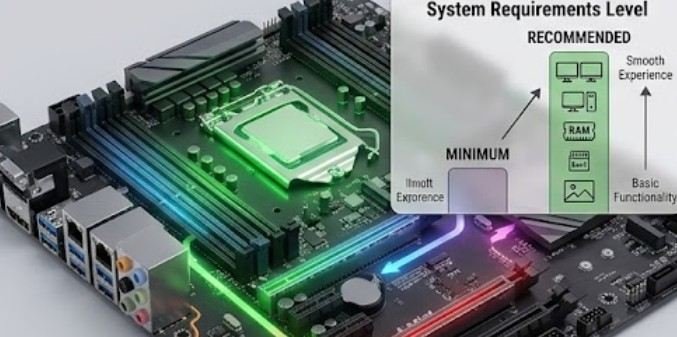
Before checking your PC or Mac, find the software developer’s official product or support page and locate its system requirements. Most applications publish two levels.
Minimum requirements represent the lowest hardware and software configuration the developer expects to support. Meeting them does not necessarily mean the application will run quickly or smoothly.
Recommended requirements are more useful if you plan to use demanding features, open large projects, multitask, edit video, run simulations, or play graphically intensive games.
Pay attention to the exact wording. “Windows 11” is different from “Windows 10 or later,” just as “Apple silicon required” is very different from “Intel or Apple silicon supported.”
Find Your Computer Specifications on Windows
Windows makes most of the required information available without installing another utility.
Press Windows + I and open System > About. Look under Device specifications for your processor, installed RAM, and system type. The same page also identifies your Windows edition and version.
The University of Texas at Dallas documents this method and notes that Windows Storage settings can also show drive capacity and available space.
For more detail, press Windows + R, type msinfo32, and press Enter. System Information provides your processor, OS version, RAM, BIOS information, and other hardware details.
If graphics performance matters, press Windows + R again, type dxdiag, and open the Display section. Note the name of your graphics processor.
Don’t Ignore 64-Bit and ARM Compatibility
Processor architecture can create compatibility problems even when your CPU appears fast enough.
For example, 64-bit applications cannot run on a 32-bit processor. Dartmouth’s Research Computing documentation explains that 64-bit software requires an appropriate 64-bit platform, while some 64-bit systems can still support older 32-bit applications.
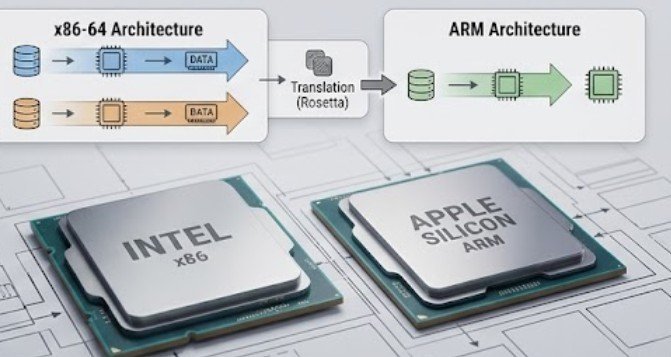
Modern Windows PCs may also use ARM processors. Before downloading software, check whether the developer provides x64, ARM64, or universal versions.
Check a Mac in Less Than a Minute
On a Mac, open the Apple menu and choose About This Mac or System Settings > General > About, depending on your macOS version.
You should be able to identify the macOS version, processor or chip, and installed memory. More detailed hardware information is available through System Report.
University of Wisconsin guidance confirms that About This Mac provides the core operating-system and memory information needed for basic compatibility checks.
Intel Mac or Apple Silicon?
This detail matters more than many Mac users realize. Older Macs use Intel processors, while newer models use Apple’s M-series chips based on ARM architecture. Lehigh University notes that Apple silicon Macs can translate some Intel applications through Rosetta, but software specifically compiled for Apple silicon generally provides better compatibility and performance.
If an application’s download page offers separate Intel and Apple silicon installers, choose the version matching your Mac.
Use the “Requirement-by-Requirement” Test
Here is a reliable way to determine how to tell if software will run on your computer without guessing.
1. Confirm the Operating System
Compare the exact supported operating systems with your installed version.
A program designed for Windows will not automatically work on macOS, and an application supporting macOS 15 or later may refuse to install on an older release.
Operating-system support also matters for security. CISA warns that unsupported operating systems and outdated software may stop receiving vulnerability fixes, increasing security risks.
2. Compare the CPU
Write down your processor model and compare it with the minimum requirement.
Do not compare only GHz numbers. A newer 2.5 GHz processor can outperform an older processor advertised at a higher clock speed because architecture, core count, cache, and instructions have changed considerably.
If the requirement lists specific processor generations, use those instead of relying on clock speed alone.
3. Check RAM
RAM is straightforward.
If software requires 8 GB and your computer has 16 GB, you have cleared the basic memory requirement. If your machine has exactly the minimum amount, however, remember that Windows, macOS, browsers, antivirus programs, and background applications are using some of that memory simultaneously.
Recommended RAM is therefore a better target for demanding software.
4. Examine the Graphics Requirement
Basic office and productivity programs often work with integrated graphics.
Video editors, 3D modeling applications, AI tools, engineering software, and modern games can be much more demanding. Compare your exact GPU model with the developer’s minimum requirement and check whether a graphics standard such as DirectX, Vulkan, Metal, or OpenGL is specified.
5. Verify Free Storage, Not Total Storage
A 512 GB SSD does not mean you have 512 GB available. Check the amount of free space remaining. Installers may also require temporary working space while files are being unpacked, so having exactly the listed installation size is not ideal.
Dartmouth’s computing guidance shows how both Windows and macOS users can identify their operating system, memory, and storage information before installing applications.
Minimum Requirements Do Not Guarantee Good Performance
One of the biggest misconceptions about software compatibility is assuming “supported” means “fast.”
A video editor may technically launch with 8 GB of RAM but become frustrating when editing high-resolution footage. A game may run on its minimum GPU but require substantially reduced graphics settings.
Treat minimum specifications as the entry point and recommended specifications as the more realistic performance target.
For applications you expect to use frequently, I would also look at your available RAM, CPU generation, cooling, and SSD space rather than simply asking whether installation is possible.
Automated Compatibility Checkers Can Help
Games are one area where automated tools can save time. Services such as System Requirements Lab compare detected PC hardware with published requirements for individual titles.
For operating-system upgrades, manufacturer compatibility tools can also identify issues involving processors, firmware, secure boot, or security hardware.
Automated scanners are useful shortcuts, but they should not replace the official requirements page. A scanner’s database may lag behind a software update or fail to account for unusual hardware configurations.
Other Requirements People Commonly Miss
Compatibility problems sometimes come from specifications that are buried in the fine print. Professional software may need a particular screen resolution, internet connection, browser, graphics driver, USB standard, or account subscription.
Some programs require specific instruction sets or virtualization features. Others may support Windows but not Windows running on ARM.
Peripheral compatibility matters too. If you use scanners, printers, capture cards, drawing tablets, or specialist audio equipment, confirm that compatible drivers exist for your operating system before upgrading either the software or OS.
If printing is part of your regular workflow, you may also want to review these ways to reduce ink use when printing documents at home after checking that your printer software and drivers remain supported.
FAQ
1. Can software run if my computer only meets the minimum requirements?
Usually, yes, but performance may be limited. Minimum specifications generally indicate basic functionality, while recommended requirements provide a better indication of comfortable everyday performance.
2. How do I know if my computer is 32-bit or 64-bit?
On Windows, open Settings > System > About and look for System type. On a Mac, check About This Mac to identify whether you have an Intel or Apple silicon processor.
3. What happens if I don’t have enough RAM?
The software may refuse to launch, run slowly, freeze, or rely heavily on storage-based virtual memory. Closing background applications may help, but additional RAM may be necessary.
4. Can I run software if my graphics card is below the requirement?
Sometimes an application will launch with reduced features or performance, but demanding programs may crash or refuse to start. Check the developer’s supported GPU list before installing.
Make the Compatibility Check Before the Download
The smartest time to investigate compatibility is before you buy, subscribe, or start a large download.
Learning how to tell if software will run on your computer comes down to a disciplined comparison: identify your OS, CPU architecture, RAM, graphics hardware, and free storage, then compare each one against the developer’s published requirements. Pay special attention to recommended specifications and architecture differences such as x64 versus ARM64.
A computer does not need to be brand new to run modern software. It simply needs the right combination of hardware and operating-system support. Five minutes spent checking those details can prevent hours of installation and troubleshooting headaches.
Leave a Reply