The first time I replaced a computer, I copied my Documents folder and thought I was finished. Days later, I needed a file I had saved on the desktop of the old machine. That experience changed how I approach how to move files from an old PC to a new PC: I find everything first, make a copy, and check the new computer before putting the old one away.
You can move personal files with an external drive, cloud storage, or a local network. The right choice depends on how much data you have and whether your files are already stored online. Whichever method you choose, copy your files rather than deleting them from the old PC during the transfer.
Find Your Files Before You Start
Open File Explorer on the old PC and check Desktop, Documents, Downloads, Pictures, Videos, and Music. Look for folders you created outside those locations, including project folders on a second drive. If several people use the computer, check each person’s account with their permission.
Also look inside apps that store work in their own locations. A file you can see within a program may need to be exported before you can move it. Browser bookmarks, saved passwords, email archives, and game saves can require separate steps. Write down which apps you use so you can reinstall them on the new PC.
Check how much space the files need, then confirm that the new PC or external drive has room for them. Keep both computers connected to power during a long transfer. If the old PC contains irreplaceable photos or documents, make a separate backup before you begin.
If you are moving from an older Windows laptop, you can also back up a Windows 11 laptop before replacing it so important files are protected before the transfer begins.
Choose the Right Transfer Method
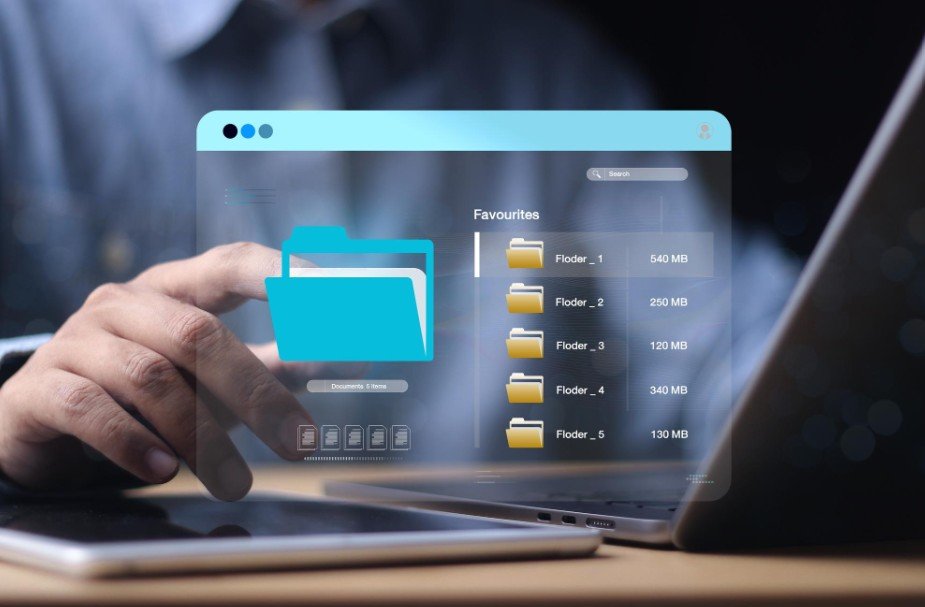
An external USB drive is a practical choice for a large collection of files or a home with limited internet access. It also lets you move files after the new PC has been set up.
Cloud storage is convenient if your files already sync to OneDrive or another service. You can sign in on the new PC and access them there, but you should confirm that uploads from the old PC have finished. Files visible only on the old computer will not appear online automatically.
Local network sharing lets two PCs exchange files while they are on the same home network. It avoids copying everything to an intermediate drive, although setting up sharing takes more work. A specialized PC transfer cable is another option; an ordinary USB charging cable should not be treated as a substitute.
Move Files With an External Drive
Copy From the Old PC
Connect an external drive with enough free space. In File Explorer, select the folders you want and choose Copy. Open the external drive and choose Paste. For a large transfer, copy one main folder at a time so it is easier to spot an error or retry a failed section.
Wait until copying finishes, then open a few files directly from the external drive. Safely eject the drive before unplugging it. Keep the original files on the old PC.
Copy to the New PC
Connect the drive to the new computer. Open File Explorer and copy the folders into the appropriate locations, such as Documents and Pictures. If a folder with the same name already exists, inspect its contents before accepting any replacement prompt.
Open several transferred files, including a document, photo, and video if you moved those types. Compare the main folders on both PCs. A completed progress bar means the copy operation ended; checking the contents tells you whether you have what you need.
Move Files With Cloud Storage
On the old PC, open your cloud storage app and check its sync status. Place the files you want in folders that the service actually syncs. If storage is full or an upload has failed, resolve that before switching computers.
Sign in to the same account on the new PC and open its cloud folder. Some services show files before downloading their full contents to the device. If you need files available without internet access, select the service’s offline or local download option and wait for it to finish.
Be careful with files that have the same name on both PCs. Check their contents and modification dates before replacing either copy. Once the move is complete, set up a continuing backup plan; syncing alone does not replace the value of a separate backup.
If you are also preparing documents for printing after the move, you can reduce ink use when printing documents at home by checking the document and print settings before sending it to the printer.
What About Network Sharing and Windows Backup?
If both PCs are on your trusted home network, you can share a folder on the old PC and access it from the new one. Copy the files you need, then turn off sharing when you are finished. This route can be useful when you lack a large external drive, but account permissions or network settings can make setup less straightforward.
Before retiring the old PC, you can also back up a Mac to an external drive if you are managing files across both Windows and Mac computers.
You may also find older instructions for a direct PC-to-PC option in Windows Backup. Microsoft’s current support page says that specific feature is no longer available and points users to Windows Backup and Restore. Follow the options currently shown on your PCs rather than relying on an older walkthrough.
A basic file copy does not install your old applications on the new computer. Download and reinstall them from their legitimate providers, then sign in or activate them as needed. Check each app for instructions on importing any settings or data it uses.
Frequently Asked Questions
1. How to move files from an old PC to a new PC without internet?
Use an external USB drive with enough capacity. Copy files from the old PC to the drive, safely eject it, and copy them onto the new PC. Check representative files before removing anything from the old computer.
2. Can I move installed programs by copying their folders?
Usually, no. Installed apps can depend on files and settings elsewhere in Windows. Reinstall them on the new PC and move or import their personal data separately.
3. When can I get rid of the old PC?
Wait until you have checked your important folders, opened files on the new PC, restored access to your apps and accounts, and made a backup. Only then should you prepare the old computer for recycling, sale, or reuse.
A Final Check Before You Switch
I would keep the old PC available for a while after the move. It gives me a chance to catch an overlooked download, archived project, or app export during normal use. Once I can find and open my important files on the new machine—and have backed them up—I can retire the old one with confidence.
Leave a Reply