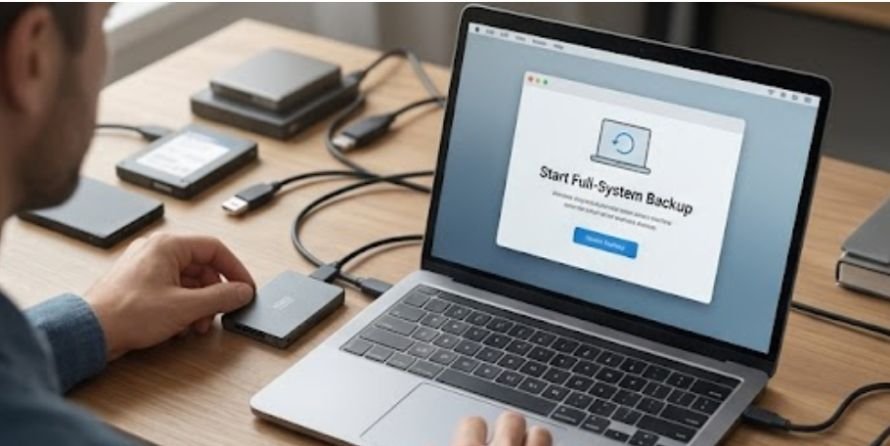
A backup that runs perfectly every night can still fail you when you need it most. The reason is simple: copying files is only half the job. A useful backup must also preserve older versions, survive problems affecting the original computer, and restore your data reliably.
That is the real challenge in learning how to choose backup software for a home computer. Instead of starting with brand names or storage prices, start by deciding what you need to recover after a failed drive, accidental deletion, stolen laptop, malware infection, or complete computer failure.
CISA recommends keeping important data on a secure external drive or a properly vetted cloud service. It also warns that an external backup drive left permanently connected may be exposed if ransomware reaches the computer.
First Decide What You Actually Want to Recover
Not every household needs the same kind of backup.
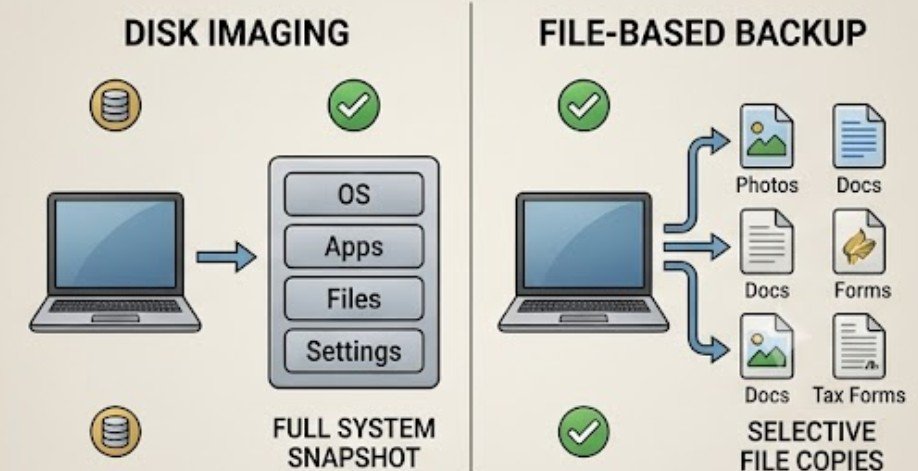
If losing family photos, tax records, schoolwork, and personal documents is your main concern, file-level backup may be sufficient. It copies selected folders and makes individual files relatively easy to recover.
A full-system image goes further. It captures the operating system, installed software, settings, and files so that a failed storage drive can potentially be replaced and restored without rebuilding everything manually.
Cloud backup your data solves a different problem. Because the copy exists away from your home, it can remain available after theft, fire, flooding, or failure of both the computer and a nearby external drive.
The strongest home setup often combines these approaches rather than treating them as competitors.
Backup, Cloud Storage, and Sync Are Not the Same Thing
This distinction prevents one of the most expensive backup mistakes.
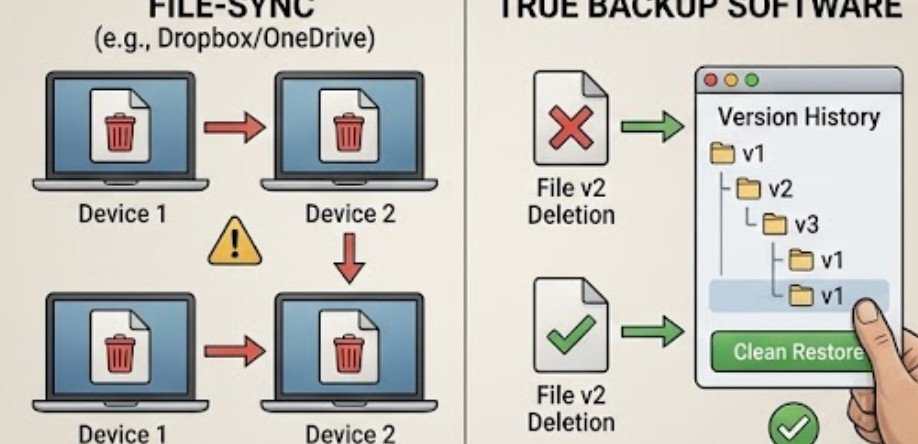
File-sync services are designed primarily to keep files synchronized across devices. If a damaged, encrypted, or accidentally deleted file is synchronized immediately, the unwanted change may also propagate.
True backup software is designed around recovery. Features such as historical versioning, retention periods, deleted-file recovery, and point-in-time restoration allow you to return to an earlier state.
The National Cybersecurity Alliance recommends creating copies regularly and notes that using both cloud and physical backup can reduce the risks associated with storing everything in one location.
Look for Incremental Backups and Version History
Copying an entire multi-terabyte computer every evening would consume unnecessary storage and time.
Incremental backups solve that problem by recording changes made after an earlier backup. Once the first large backup is finished, subsequent jobs can be much smaller.
Version history is equally important. Imagine editing a spreadsheet Monday, accidentally replacing important information Tuesday, and noticing the problem Friday. A backup containing only Friday’s version may faithfully preserve the wrong file.
NIST emphasizes that effective backup strategies should not merely create copies; backups also need to be maintained and tested so they remain useful during recovery.
Calculate Storage Before Choosing a Plan
Do not base capacity on the advertised size of your computer’s drive. Base it on how much data you actually use and how quickly that amount grows.
Suppose your computer currently contains 600 GB of data.
A 1 TB backup drive leaves limited room for historical versions once the first backup has been created. A 2 TB or larger drive gives the software far more space to retain changed and deleted files.
Before choosing a larger backup drive, you can also free up storage on a laptop without deleting important files by removing temporary data and safely managing files you no longer need locally.
A practical planning range is roughly two to four times the amount of data being protected when you want generous version history. It is a planning heuristic rather than a universal technical requirement; compression, retention rules, file-change frequency, and full-image schedules can all change the calculation.
For cloud services, check whether storage is unlimited, capped per account, or shared among several computers.
Make Ransomware Resistance Part of the Buying Decision
A backup attached to an infected computer can sometimes become another target.
CISA’s ransomware guidance recommends maintaining offline backups and testing restoration procedures regularly. The agency notes that ransomware can seek out accessible backups and encrypt or delete them.
That makes removable external drives useful, provided they are disconnected after backup. Cloud systems can provide additional separation, particularly when they include version history or protections against immediate deletion.
The Federal Trade Commission similarly advises consumers to protect important files through external storage or online services and recommends examining the privacy and security controls of cloud providers, including multifactor authentication.
Check Privacy Before Sending Everything to the Cloud
Tax returns, scanned IDs, financial records, family photographs, and personal documents may all end up inside a backup archive.
Look for encryption during transfer and while data is stored. Find out whether the provider controls the encryption keys or offers an architecture in which your password or private key plays a stronger role.
The Electronic Frontier Foundation recommends encrypted network connections for online backups and also advises encrypting external backup drives when sensitive information is involved.
Also check whether multifactor authentication is supported, especially for cloud accounts containing years of personal records.
Use a Five-Minute Backup Software Test
Before paying for a subscription or long-term license, answer five questions.
Can the software automatically protect the folders that matter? Can it preserve several previous versions? Can you restore a single deleted file without restoring the entire computer? Can it create recovery media or restore a system image if the main drive dies? Finally, can you successfully restore a test folder today?
That last question is the most important.
A green “backup completed” message confirms that software wrote data somewhere. It does not prove you understand how to retrieve it.
This kind of testing also helps you recognize a fake computer virus warning before reacting to misleading security messages or prompts during a recovery process.
Create a temporary folder containing several files, back it up, delete the originals, and restore them. Repeat this periodically.
Build a Two-Layer Home Backup Instead of Hunting for One Perfect Product
For a typical Windows or Mac household, I would prioritize two independent recovery paths.
Use an external drive for fast local recovery and an offsite cloud backup for disasters affecting the home. Keep useful version history on at least one layer, automate routine jobs, and periodically disconnect removable storage.
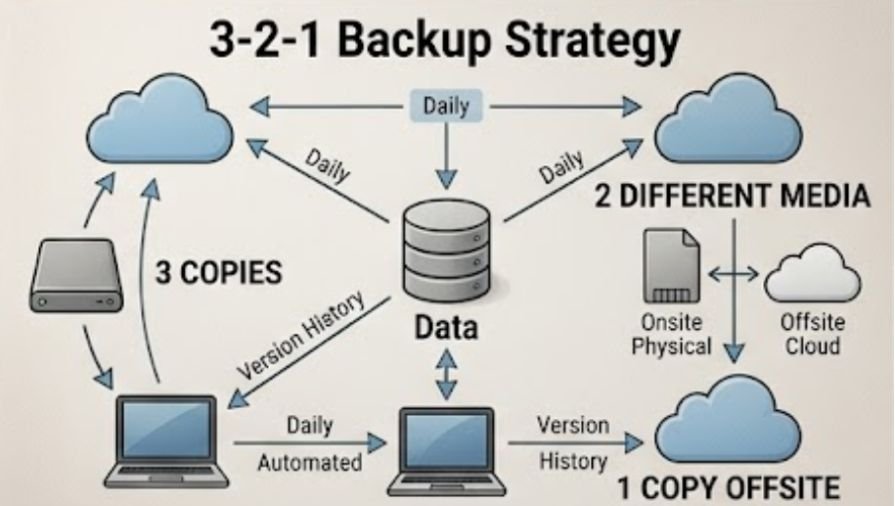
This follows the broader logic behind the well-known 3-2-1 strategy: maintain multiple copies, use more than one storage method, and keep a copy separated from the original location.
Hardware changes are another good moment to verify your backups. Before replacing major PC components or making platform changes, users comparing Z-series vs B-series motherboard chipset differences should make sure important data is recoverable before beginning the upgrade.
Frequently Asked Questions
1. What features should home backup software have?
Prioritize automatic scheduling, incremental backups, version history, encryption, simple file restoration, clear failure alerts, and ideally full-system imaging or bootable recovery tools.
2. Is cloud backup better than an external hard drive?
Neither is universally better. External drives offer fast local recovery, while cloud backups provide offsite protection. Using both gives a household stronger protection against different types of failure.
3. How much backup storage do I need?
Start with your actual used storage rather than drive capacity. Having roughly two to four times your active data can provide useful room for historical versions, although retention settings affect requirements.
4. How often should I back up my home computer?
Frequently changing documents may justify daily or continuous backups. Less active collections can be backed up less often. Automation matters more than choosing an ambitious schedule you will not maintain.
A Backup Is Only Real After You Restore It
The best backup software is not necessarily the product with the longest feature list. It is the system that quietly protects your important data, preserves enough history to undo mistakes, survives a problem affecting the original computer, and gives you a recovery process you have already tested.
Choose software based on the failure you want to survive. Combine local and offsite protection where practical, automate the routine work, encrypt sensitive copies, and perform a small test restoration before trusting years of irreplaceable files to the system. The day your computer fails should not be the day you first discover how your backup works.
Leave a Reply