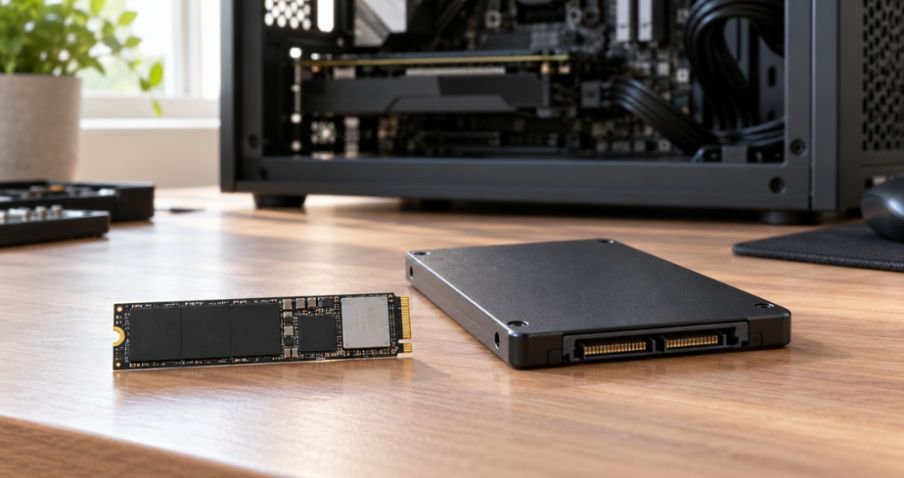
A Gen 5 NVMe drive can advertise more than 14,000 MB/s, while a SATA SSD usually tops out near 550 MB/s. Does that mean your PC will feel 25 times faster? I use this NVMe M.2 SSD vs SATA SSD speed comparison to answer the question that matters: which tasks can actually use that extra bandwidth?
NVMe vs SATA SSD Speeds: What the Numbers Mean
SATA SSDs use the SATA interface, which has a theoretical ceiling of about 600 MB/s. NVMe SSDs use PCIe lanes and a protocol built for solid-state storage. Each newer PCIe generation raises the potential transfer rate, provided the drive and motherboard support it.
| Drive type | Typical advertised peak sequential read speed | Connection |
| SATA SSD, 2.5-inch or M.2 | Around 500–560 MB/s | SATA |
| PCIe Gen 3 NVMe M.2 | Up to around 3,500 MB/s | PCIe x4 |
| PCIe Gen 4 NVMe M.2 | Up to around 7,000–7,500 MB/s | PCIe x4 |
| Fast PCIe Gen 5 NVMe M.2 | Up to 14,000 MB/s or more | PCIe x4 |
These figures describe fast sequential reads, such as reading a large continuous file. They do not predict Windows boot time, game frame rate, or every video-editing task. Actual speed also depends on the drive’s capacity, cooling, available PCIe lanes, and what the other drive can sustain. Crucial, for example, rates its T705 at up to 14,500 MB/s, but that is a product specification rather than a promise for every workload.
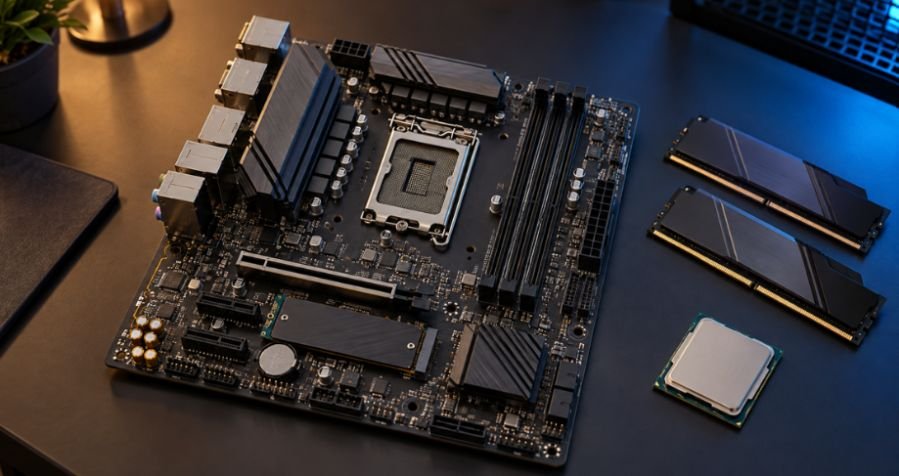
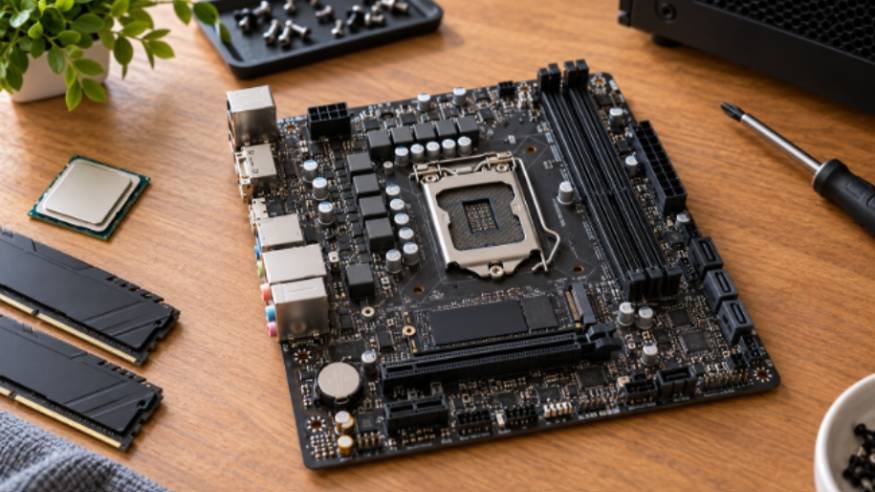
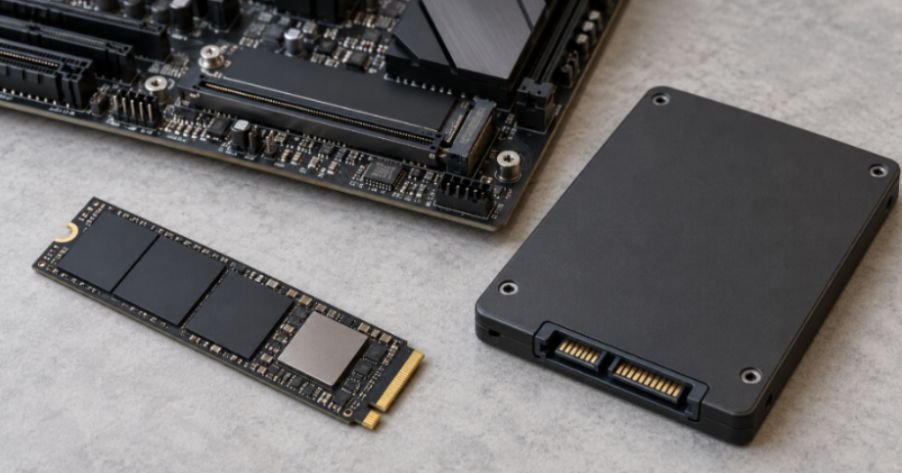
M.2 describes the drive’s physical shape, not its speed. An M.2 SSD can use either SATA or NVMe. Before buying one, I check which protocols the computer’s M.2 slot supports; a drive that fits physically may still be incompatible.
Will NVMe Make Windows and Everyday Apps Faster?
Booting and basic work
Moving from a hard drive to either SSD is a major improvement. Moving from a SATA SSD to NVMe is usually subtler when I open a browser, write a document, or start Windows. Those jobs also depend on the CPU, software, and numerous small operations.
Puget Systems notes that even though NVMe has far higher transfer rates, the CPU can limit the difference people notice when launching Windows and applications.
That makes a working SATA SSD a sensible drive for everyday tasks. I would prioritize enough capacity over a headline Gen 5 speed if the faster drive forced me into a cramped storage setup.
A 50 GB transfer, with the catch included
Here is a useful way to test a speed claim. At a constant 550 MB/s, reading 50 GB would take roughly 91 seconds. At a constant 7,000 MB/s, it would take about seven seconds. That is a calculation from file size divided by transfer rate, not a measured copy time.
A real transfer must also write those 50 GB somewhere. Copy from NVMe to SATA, and the SATA destination can become the bottleneck. Copy between two fast NVMe drives, and their sustained write speeds, heat, and available cache matter. The seven-second figure should never be treated as a guaranteed result.
NVMe vs SATA for Gaming: Loading, Streaming, and FPS
What changes when a game loads?
Many games can load faster from NVMe, but the difference is game-dependent. Decompression, the CPU, and the game’s design can limit the gain. I would expect an upgrade to improve some loading and asset-streaming tasks, not assume every loading screen will nearly disappear.
An SSD upgrade also does not directly raise in-game FPS. If a game stutters, storage may be worth investigating, but the CPU, GPU, memory, and game settings deserve attention too. For a new gaming build, I would normally put the main game library on a compatible NVMe drive. For an existing PC with a healthy SATA SSD, I would check actual game behavior before replacing it.
Does DirectStorage require the fastest NVMe drive?
Microsoft designed DirectStorage to help games use high-speed storage, including NVMe drives, for many small reads with less CPU overhead. That makes NVMe useful for games built to take advantage of it. DirectStorage does not guarantee the same loading improvement in every title, and a Gen 5 label alone cannot eliminate texture pop-in.
If I were planning a broader gaming upgrade, I would also choose DDR5 RAM for gaming PC builds based on motherboard compatibility and capacity. Faster storage cannot make up for too little RAM.
Video Editing: Match the Drive to the Footage
When SATA can keep up
Resolution alone cannot tell me whether footage needs NVMe. A compressed 4K file may demand far less storage bandwidth than uncompressed footage or several high-bitrate camera streams. Puget Systems recommends considering the media’s bitrate and allowing substantial headroom, especially for multicam work.
Suppose one camera stream reads at 100 MB/s. Four simultaneous streams would need about 400 MB/s before allowing for other activity. That is within a fast SATA SSD’s advertised sequential range, although real playback still depends on decoding and software behavior.
Four streams at 300 MB/s each would demand about 1,200 MB/s, making SATA a likely storage limit. I would calculate from the footage’s actual bitrate, then leave room for cache and other reads.
When I would choose NVMe
For high-bitrate multicam media, demanding image sequences, and active cache or scratch files, NVMe offers useful headroom. Puget Systems recommends NVMe as its default choice for Premiere Pro cache and scratch storage, while noting that SATA SSDs can still do the job within a tighter budget.
NVMe does not automatically remove the need for proxies. Highly compressed footage can strain video decoding even when the storage drive has bandwidth to spare.
Exports can likewise be limited by the CPU, GPU, codec, or destination drive. I would diagnose the slow step before buying a Gen 5 SSD to fix it.
Which SSD Should You Buy?
| Your main use | My practical choice | Reason |
| Web, office work, and an existing SATA SSD | Keep SATA unless capacity is low | Basic tasks rarely use NVMe’s full bandwidth |
| New gaming PC with a compatible slot | NVMe M.2 | Strong all-around choice for games and large installs |
| High-bitrate multicam editing | NVMe for active media and cache | Greater bandwidth headroom |
| Bulk storage or older PC without NVMe support | SATA SSD | Simple compatibility check and useful SSD performance |
| Gen 5 upgrade | Buy for a demonstrated workload | Peak speed may bring little visible benefit elsewhere |
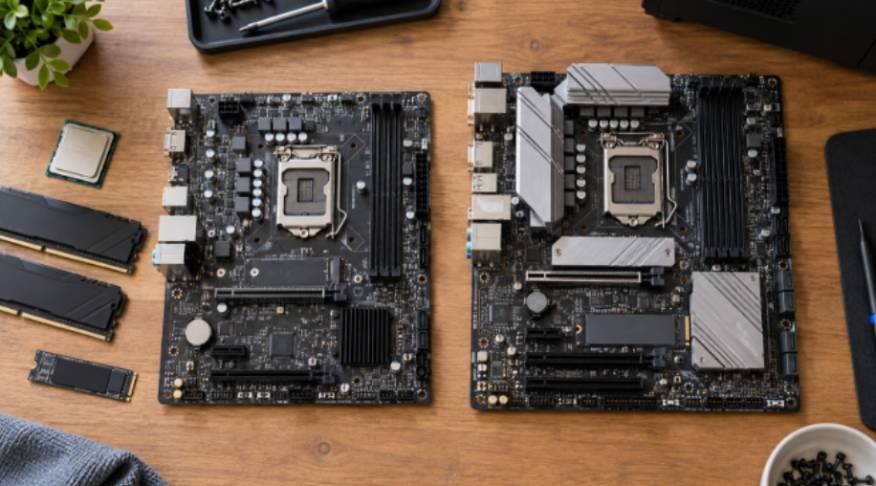
I check the motherboard manual before checkout. It should tell me which M.2 slots accept NVMe, their PCIe generation, and whether using a slot affects another connection.
I also check cooling, because a fast drive that overheats can slow down during sustained transfers. When matching storage with Intel Core processors, the motherboard’s slot specifications matter more than the processor’s name alone.
Frequently Asked Questions
1. Is an M.2 SSD always faster than a SATA SSD?
No. M.2 is a form factor; an M.2 SATA drive still uses the SATA interface.
2. Is a Gen 5 NVMe SSD worth it for gaming?
Usually only if its price and your other needs justify it. Check the games you play before paying extra for peak sequential speed.
3. Can a SATA SSD handle 4K video editing?
Yes, for many compressed 4K workflows. The footage bitrate, number of streams, and decoding demands determine whether it is enough.
4. Does NVMe improve FPS?
Storage speed does not directly increase FPS, though faster loading or asset streaming may improve parts of the experience in some games.
The Speed Crown Is Real. Your Bottleneck Gets the Vote.
My conclusion from this NVMe M.2 SSD vs SATA SSD speed comparison is straightforward: NVMe wins the speed test, but the workload decides whether I feel that win. I would keep a capable SATA drive for ordinary use, choose NVMe for a new gaming PC, and measure media bitrate before building an editing workstation. Check your M.2 slot and your actual workload first; then buy the speed you can use.