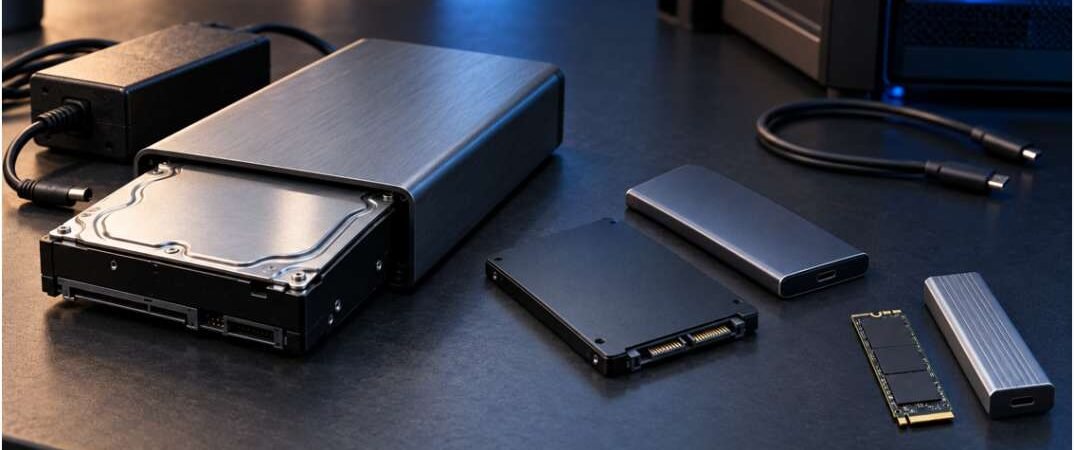
Building or repurposing external storage requires precise hardware alignment. Pairing a bare drive with an incompatible housing leads to physical mismatching or power failure. Mastering form factors, interface protocols, and electrical limits prevents costly mistakes.
1. Drive Form Factor and Physical Dimensions
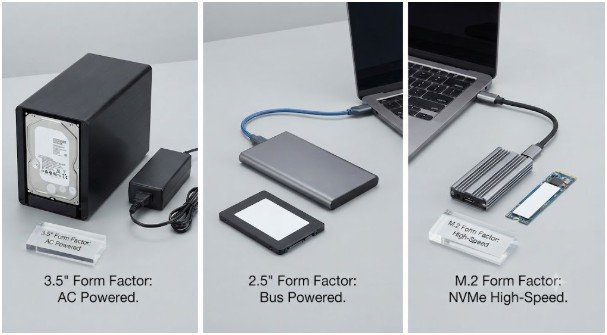
Matching the physical size of the internal storage media to the enclosure housing is the absolute first step.
- 3.5-inch Enclosures: Built for standard desktop mechanical hard drives (HDDs). These bulky housings require an external AC wall power adapter to supply 12V electricity.
- 2.5-inch Enclosures: Designed for laptop HDDs and SATA solid state drives (SSDs). These slim units run entirely on USB bus power. Drive thickness matters here (7mm vs. 9.5mm); most modern enclosures accommodate both, but specialized enterprise drives can exceed standard tolerances.
- M.2 Enclosures: Compact, pocket-sized casings built specifically for M.2 stick SSDs like 2280 or 2242 formats.
| Drive Type | Enclosure Size Needed | Power Requirement | Internal Interface | Maximum Useful USB Speed |
| 3.5″ Desktop HDD | 3.5-inch Enclosure | Requires AC Wall Adapter | SATA | USB 3.0 (5 Gbps) |
| 2.5″ Laptop HDD / SSD | 2.5-inch Enclosure | USB Bus Powered Only | SATA | USB 3.0 / USB 3.2 Gen 2 |
| M.2 NVMe SSD | M.2 Enclosure | USB Bus Powered Only | PCIe / NVMe | USB 3.2 Gen 2 (10 Gbps+) |
2. Internal Interface Protocols: SATA Versus NVMe
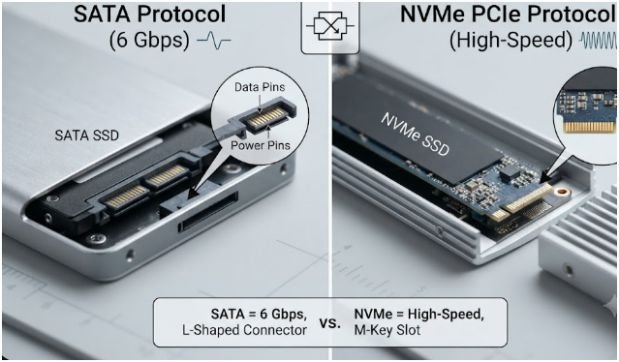
An enclosure acts as a bridge converter, meaning the internal connector must match the logic protocol of the bare drive.
- SATA (I / II / III): Utilized by all 3.5-inch desktop HDDs, mechanical laptop drives, and standard 2.5-inch SSDs. It uses an L-shaped data and power connector block, capping internal throughput around 6 Gbps.
- NVMe (PCIe): Strictly reserved for M.2 NVMe solid-state modules. Traditional 3.5-inch mechanical desktop drives do not utilize NVMe architecture.
When upgrading system memory components or tuning a rig that uses advanced b-series motherboard chipset architecture, matching internal lane speeds ensures your external storage bottleneck remains on the cable rather than the motherboard controller.
3. External Interfaces and Host Connection Speeds
The external cable and port dictate how fast data travels between the storage enclosure and your computer system.
- USB 3.0 / USB 3.2 Gen 1: Transfers up to 5 Gbps. This matches mechanical hard drive maximum speeds perfectly, as disk rotation limits throughput long before the USB connection saturates.
- USB 3.2 Gen 2 / Gen 2×2: Reaches 10 Gbps or 20 Gbps. This bandwidth tier is required only when housing fast 2.5-inch SATA SSDs or high-speed M.2 NVMe drives.
- Thunderbolt 4 / USB4: Reaches up to 40 Gbps. While overkill for standard desktop HDDs, it provides optimal performance for heavy creative video editing workflows and professional workstation backups.
Power delivery is equally important when pushing high throughput. Just as high-performance computing requires graphics cards with best power efficiency ratings to maintain thermal stability under load, high-speed storage enclosures require robust power delivery components to prevent thermal throttling and disconnects during long file transfers.
4. Critical Performance and Thermal Features
Choosing a housing based purely on size and port type often leads to long-term hardware failure if thermal and capacity limits are ignored.
- UASP Support: Prioritize models featuring USB Attached SCSI Protocol (UASP). It drastically improves small file handling efficiency and lowers host CPU strain.
- Enclosure Material: Desktop HDDs generate significant operating heat. Aluminum enclosures act as passive heatsinks, drawing damaging thermal energy away from internal electronics far better than plastic models.
- Capacity Support Limits: Budget controllers often cap out at 4TB or 6TB drive limits. When recycling massive 12TB–20TB high-capacity drives, verify the specific controller firmware explicitly supports modern high-capacity formatting.
Frequently Asked Questions
1. Can I put an M.2 NVMe SSD into a SATA enclosure?
No, the physical pin layout and logic protocols are entirely different.
2. Do 3.5-inch enclosures run on USB power alone?
No, 3.5-inch mechanical drives require an external AC wall adapter for 12V power.
3. What is UASP and why does it matter?
UASP is a protocol that enhances data transfer efficiency over USB, reducing latency and CPU overhead.
4. Can a large 16TB hard drive work in an older enclosure?
Often no, because older enclosure bridge controllers have built-in capacity limits below 8TB.
Conclusion: Don’t Let Your Data Choke on Bad Hardware
Picking an enclosure isn’t just about plugging a drive into a box—it’s about matching electrical realities to mechanical specs. Avoid penny-pinching on cheap plastic housings that trap heat and throttle your data throughput. Double-check your pin layouts, verify your power adapters, and treat your storage upgrades right.