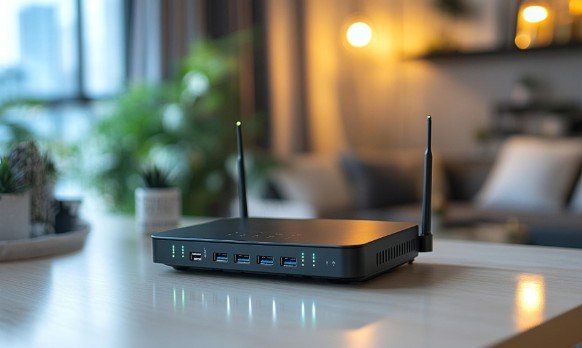
When a new router gets every device online, I’m tempted to call the job finished. But a working connection tells me little about the settings protecting it. I use the next few minutes to check the administrator account, Wi-Fi security, updates, and features I may never need. If you’re wondering how to secure a new home router after setup, start with the changes below and test your connection as you go.
1. Open the router’s official settings
Find the router’s exact model on its label, in its setup app, or in your internet provider’s account. Use the manufacturer’s or provider’s instructions to open its settings. Depending on the model, you may manage it through an app or a webpage while connected to your home network.
Avoid entering your router login on an unfamiliar website that merely claims to offer a setup shortcut. Menu names differ across brands, so look for sections such as Administration, Wireless, Security, or Advanced Settings.
2. Change the administrator password
The administrator password controls the router’s settings. It is separate from the password your family uses to join Wi-Fi. Give the administrator account a long, unique password, and change its username if the router allows it. Store the new login in a password manager or another secure place.
Some newer routers require a unique password during initial setup. Check what was created rather than assuming the account still uses a factory default. If the router offers two-factor authentication for its management account, turn it on.
3. Set a private network name and strong Wi-Fi password
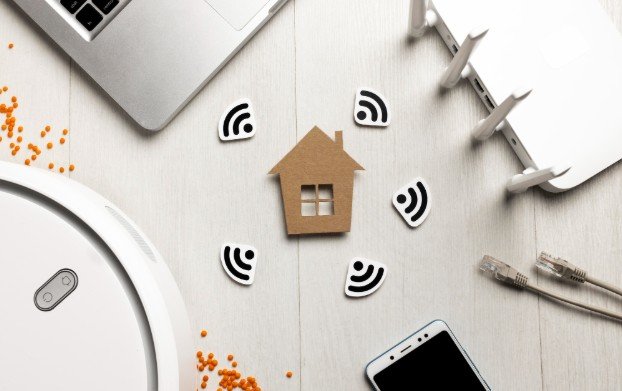
Choose a network name, or SSID, that does not reveal your name, street address, apartment number, or router model. Then create a Wi-Fi password that you have not used for another account. Keep it different from the administrator password.
Saving a new network name or password will usually disconnect your wireless devices. Reconnect your phones and computers first, followed by printers, televisions, cameras, and other smart-home equipment. A device that stops working immediately after this change may simply have the old Wi-Fi password saved.
4. Choose the strongest compatible Wi-Fi security
In Wireless Security, select WPA3 Personal if your router and household devices support it. If an older printer or smart device cannot connect, check whether your router offers a WPA2/WPA3 compatibility mode. WPA2 Personal with AES is another option when compatibility requires it. Avoid older WEP and WPA security modes.
Test an older device before treating the change as complete. If your router supports a separate network for older equipment, its documentation can help you decide whether that arrangement works better for your household.
5. Update the firmware and enable automatic updates
Router firmware is the software that runs the device. Open its update section, install an available update, and confirm that the router reconnects afterward. Enable automatic updates when the option is available.
For an internet-provider-supplied gateway, update controls may belong to the provider. Check its app or support information to learn how updates are delivered. Return to this setting periodically if updates require you to start them manually.
6. Review features that open access
Look for remote administration, which allows the router’s settings to be reached from outside your home. Leave it disabled unless you have a specific reason to use it and understand the protections your router provides.
Check Wi-Fi Protected Setup, often called WPS, and disable it if you do not need it. Review UPnP and port-forwarding rules as well. Some games, cameras, and other services use these features, so identify an existing rule before removing it. Confirm that the router’s built-in firewall is enabled.
7. Give guests their own network
A guest network lets visitors connect without sharing your main Wi-Fi password. Set its own strong password and check whether the router offers an option to prevent guests from reaching devices on your main network.
A separate smart-device network can also be useful if your router supports one. Before moving a printer, speaker, or camera, remember that separation may stop a phone on the main network from discovering it. Connect one device and test its normal functions before moving the rest.
8. Check which devices are connected
Open the router’s connected-device list after reconnecting everything. Compare it with the phones, computers, televisions, and smart devices you recognize. Device names are sometimes vague, so investigate an unfamiliar entry before assuming it is an intruder.
If you find a device you cannot account for, change the Wi-Fi password and reconnect only known devices. Keep each connected device updated, too; securing the router does not update a camera or computer automatically. If Wi-Fi is slow on one device but fast on others, check that device’s updates and background activity before changing router settings.
9. Confirm the changes worked
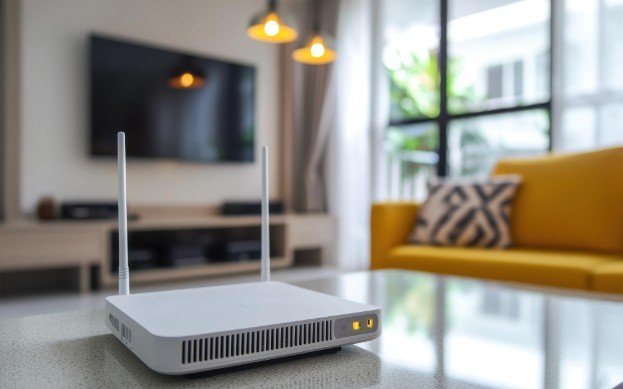
Reconnect a phone and a computer, then check that both can browse normally. Sign out of the router’s settings and sign back in with the new administrator password. Confirm the selected security mode, update status, and guest-network settings.
Save the router model and a reminder to review its updates and connected devices. If a setting causes a problem, consult the official instructions for that model before resetting the router. A factory reset can erase your configuration and disconnect the household.
Frequently Asked Questions
1. How long does it take to secure a new router?
The main password, encryption, and update checks can be completed in one sitting. Reconnecting smart devices may take longer, especially if they need their credentials changed in separate apps.
2. Should I change my Wi-Fi password regularly?
Change it if you suspect someone has access, shared it more widely than intended, or find an unexplained connected device. A strong, unique password matters more than changing it on an arbitrary schedule.
3. What is the first step in how to secure a new home router after setup?
Open the router’s official settings and verify its administrator password. Then check the Wi-Fi password, encryption mode, and firmware update status before reviewing optional features.
Keep Your Network Ready
I consider the setup finished only after my devices reconnect and I can confirm the new settings. The habits that matter most are simple: protect the administrator account, use modern Wi-Fi security, install updates, and notice devices I do not recognize. A brief check now also makes future connection problems easier to trace.
Leave a Reply