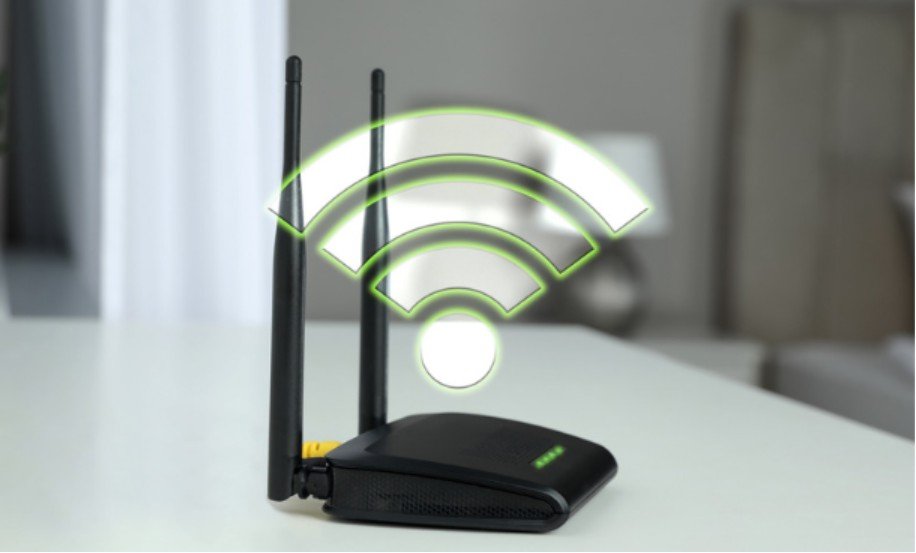
I know how frustrating it is to replace a router, see every phone and laptop reconnect, and find that the printer still says “offline.” If you’re wondering how to connect a wireless printer to a new Wi-Fi network, start at the printer: it may still have the old network name or password saved. Once it joins the new network, you can check whether your computer or phone finds it.
Check the New Network Before Changing Printer Settings
Find the Wi-Fi network name, also called the SSID, and its password. Check the exact spelling, capital letters, and special characters. If your router broadcasts separate 2.4 GHz and 5 GHz networks, check which bands your printer supports. Some older printers cannot join a 5 GHz-only network.
Place the printer near the router for setup, turn it on, and make sure your computer or phone is connected to the home network you want the printer to use. Your Wi-Fi and home layout can affect signal strength, so test the connection near the router before moving the printer to its usual spot. Avoid a guest network while testing: its settings may prevent devices from finding one another.
If you gave the replacement router the same name and password as the old one, wait briefly and check whether the printer reconnects on its own. If it remains offline, run wireless setup again.
Connect a Printer That Has a Screen
Use the Wireless Setup Wizard
On the printer, open Settings, Setup, Network, or Wireless. Look for an option such as Wi-Fi Setup, Wireless Setup Wizard, or Network Setup. Menu names vary by model.
Choose the new network name from the list, enter its password, and wait for a connected message or a steady wireless indicator. If the network is hidden, your printer may offer an option to enter its name manually.
If you cannot find the Wi-Fi menu, search the printer maker’s support site using the exact model number printed on the machine. Instructions for a different model may lead you to the wrong menu.
Check That the Printer Joined
Many printers can display or print a network status report. Use it to confirm the connected network name and look for an assigned IP address. A connection report can also show an error when the password or router settings prevent the printer from joining.
Connect a Printer Without a Screen
Use the Manufacturer’s Setup App
A screenless printer usually needs to enter wireless setup mode before an app can find it. Follow the instructions for your exact model, then use its manufacturer’s setup app or software to select the new network and provide the password. The app may briefly connect your phone or computer directly to the printer during setup.
If the app cannot find a printer that was previously installed, look for its option to add or set up a printer again. Some models require a network settings reset first. Reset only the network settings if your model’s instructions call for it; a full factory reset can erase other preferences.
Try WPS If Both Devices Support It
Some printers and routers offer WPS push-button setup. Put the printer in WPS mode, then press the router’s WPS button within the time stated in the printer’s instructions. Wait for the connection indicator to settle.
WPS is optional. If your router does not have a WPS button, use the setup app or the printer’s wireless setup menu instead.
Add the Printer Back to Your Devices
Connecting the printer to Wi-Fi and selecting it on your computer are separate steps. First, confirm the printer and computer are on the same home network. Then try printing a test page.
On Windows 11, open Settings > Bluetooth & devices > Printers & scanners. Check whether your printer is already listed. If it is missing, select Add device.
If your laptop is also running short on disk space, you can free up storage on your laptop without deleting important files before continuing with printer setup.
If an old entry remains offline after the network change, use the printer maker’s setup instructions to reconnect it, then check the printer list again.
On a Mac, open System Settings > Printers & Scanners and check the available printers. For an iPhone or iPad using AirPrint, connect the device to the same Wi-Fi network as the printer, open a document or photo, and select Print. AirPrint availability depends on the printer model.
Fix the Connection That Is Still Failing
If the new network name does not appear, move the printer closer to the router and check whether its Wi-Fi is turned on. Confirm that the router offers a band and security setting the printer supports. A model’s manual is the safest place to check those limits.
If the printer finds the network but rejects the password, re-enter it carefully. Remember that the router’s Wi-Fi password may differ from the password used to manage the router or your internet account.
If the printer reports that it is connected but still appears offline, confirm that your computer or phone is on the same home network. Restart the printer and check its network report.
If the printer connects but still produces blank output, you can also troubleshoot why a printer prints blank pages with a full ink cartridge to determine whether the issue is related to the print job or ink delivery.
An old printer entry on the computer may still point to a previous network address; adding the printer again may resolve that problem.
If setup keeps failing, use your model’s official support page for its network reset and installation steps. A temporary USB connection is available on some models, but follow the setup software’s prompts before connecting or removing the cable.
Frequently Asked Questions
1. How to connect a wireless printer to a new Wi-Fi network after changing the password?
Open the printer’s wireless setup menu or put a screenless model in setup mode. Select the existing network name and enter its new password. If the printer will not accept the change, consult its model-specific instructions for resetting the saved network settings.
2. Do I need to reinstall the printer on every computer?
Not always. First reconnect the printer to Wi-Fi and try a test print from each device. Add it again only where it remains missing or offline.
3. Can I use Wi-Fi Direct instead of my home network?
Wi-Fi Direct can connect a compatible device straight to the printer. It serves a different purpose from joining the printer to your home router, where household devices can discover it on the local network.
Back to Printing
When I troubleshoot a printer after a router change, I check its Wi-Fi connection before changing anything on the laptop. That order makes the problem easier to locate: join the new network, confirm the connection, and then test each device.
If the computer itself remains slow after reconnecting the printer, you can tell if a slow PC needs more RAM or a faster SSD before changing other hardware.
If a step looks different on your printer, its exact model number will lead you to the right instructions.
Leave a Reply