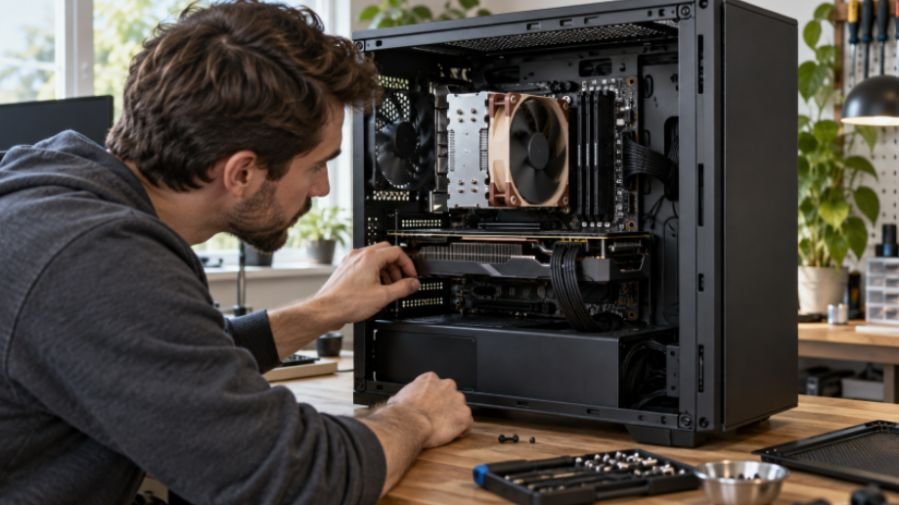
A PC that boots and browses normally can still crash during a game, video export, or long work session. When I investigate an unstable build, I start with monitoring, test each component separately, and save the combined load for last. That is how to test computer hardware stability under load without losing track of what caused a failure.
A passing test increases confidence in your PC. It cannot guarantee that every future game, application, or workload will run without trouble.
Prepare Your PC and Monitor Its Temperatures
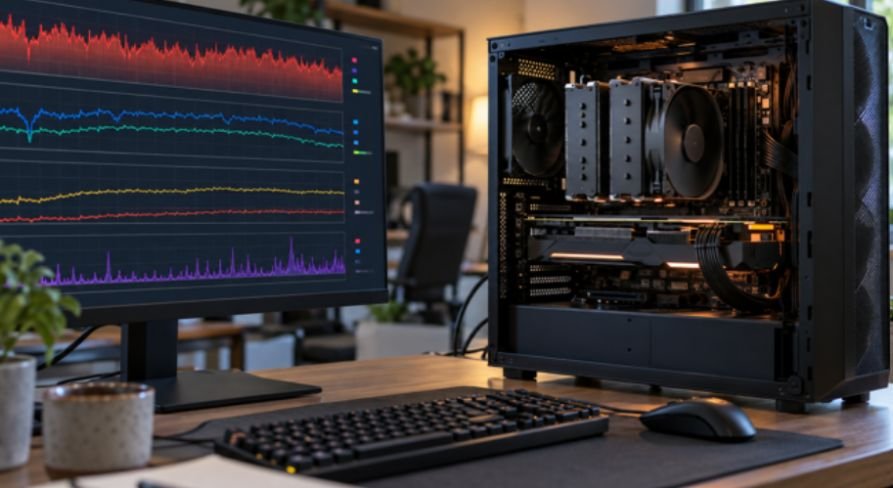
Save your work before testing. Place a desktop where its vents have room to breathe, and confirm that its fans spin. If you recently changed an overclock, memory profile, or power limit, record those settings. You may need to return to the defaults while troubleshooting. If you are building or upgrading the system, best budget motherboards for Intel Core processors can help you review motherboard options before testing.
Open HWiNFO in sensor mode and watch CPU temperature, GPU temperature, clock speeds, and any available throttling indicators. Note the idle readings first. During each test, look for temperatures that climb continuously, clocks that fall sharply, and fans that fail to respond.
There is no universal “safe CPU temperature” or “safe GPU temperature.” Limits depend on the exact model. Intel, for example, says its processors have product-specific maximum junction temperatures. Check your CPU and GPU specifications before treating a number such as 90°C as a pass or fail.
| Before you start | What to check |
| Cooling | Clear vents, confirm fans work, and inspect dust buildup |
| Power | Use a suitable outlet and avoid an overloaded power strip |
| Monitoring | Record idle temperature, then watch temperatures and clocks under load |
| Test settings | Write down overclocks, undervolts, and memory profiles |
| Stop conditions | Stop for repeated errors, a burning smell, unexpected shutdowns, or rapidly rising temperatures |
Run CPU and GPU Stress Tests Separately
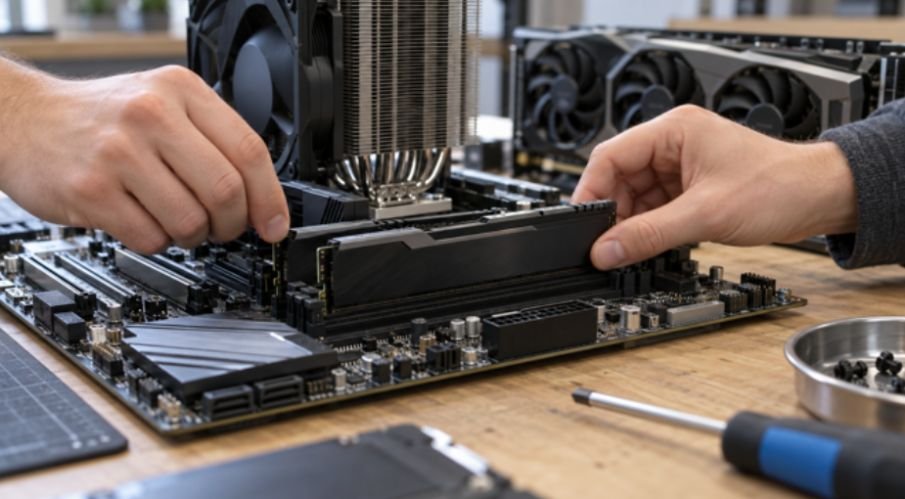
Separate tests give you a useful baseline. If the CPU test passes but the GPU test crashes, you have a narrower place to start. Keep the monitor visible, and stop a test if the system behaves abnormally.
Check CPU Stability and Cooling
Start with a 10- to 30-minute Cinebench loop or an OCCT CPU test. This is long enough for an initial check of sustained performance and cooling. Watch the CPU temperature and clock speed together: a high temperature matters more when it also triggers sustained throttling or an unexpected shutdown.
For deeper troubleshooting, a Prime95 Small FFTs test creates a demanding CPU workload. Its Blend mode also exercises memory. These tests can produce more heat than your usual applications, so stay nearby during the first run. If the PC fails, return any CPU overclock or undervolt to its default setting and repeat the same test before changing hardware.
Check GPU Stability and Display Behavior
Run a graphics-heavy game you know well or a looping GPU stress test for 15 to 30 minutes. Look for visual artifacts, a black screen, a display-driver reset, or a crash. Watch GPU temperature and clock speed as the card warms up.
A 3DMark stress test offers another useful measure: it repeats a workload and reports how consistent its frame rate remains. Its published pass criterion is completion of all loops with at least 97% frame-rate stability. That score measures performance consistency in that test; it does not certify the entire PC.
| Test | Initial run | What a failure may suggest |
| Cinebench or OCCT CPU | 10–30 minutes | CPU settings, cooling, or power delivery |
| Prime95 Small FFTs | Start with a short, monitored run | CPU settings or cooling under extreme load |
| Game or GPU stress test | 15–30 minutes | GPU settings, driver, cooling, or power delivery |
| 3DMark stress test | Complete its prescribed loops | Inconsistent performance or a graphics-related crash |
These times are practical starting points, not universal proof of stability. Extend a test when you are chasing a failure that normally appears later.
Test RAM Before Blaming the Power Supply
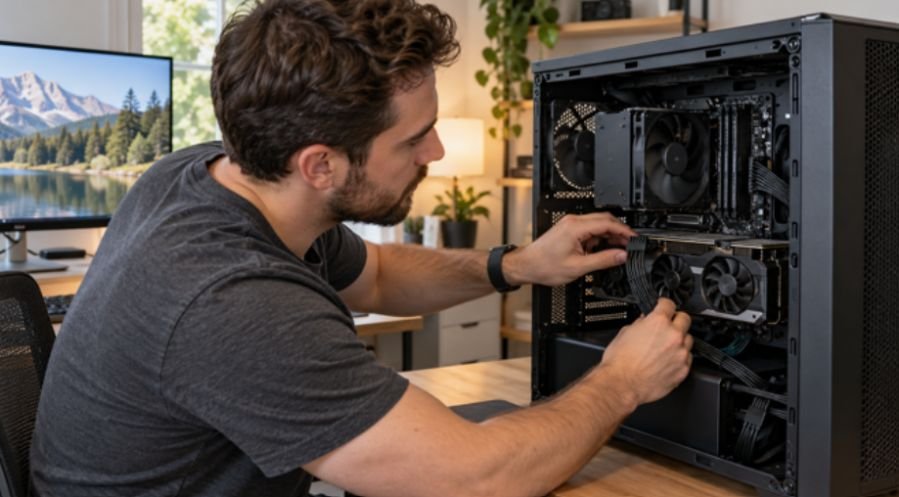
Memory faults can appear as application errors, blue screens, or crashes in unrelated programs. For a thorough check, boot MemTest86 from a USB drive and complete its configured tests. The tool runs outside Windows and reports detected memory errors. One clean run is encouraging; an error needs investigation.
If errors appear, disable your memory overclock or XMP/EXPO profile and test again. Then check that the modules sit firmly in the motherboard’s recommended slots. Testing one module at a time can help isolate a faulty stick or slot.
Do not assume every reported memory error proves the RAM itself is defective; CPU and motherboard problems can also affect a memory test.
This check matters especially for video editing workstations, where long exports can expose errors that short tasks miss.
Try a Combined CPU and GPU Load Last
Once the separate tests pass, run a short, supervised combined test. OCCT’s Power test places heavy load on the CPU and GPU together to increase system power demand. Start with 10 to 15 minutes while watching temperatures. Stop immediately if the PC shuts down, produces errors, or shows signs of overheating.
Here is the diagnostic advantage of the test order: if both separate tests pass but the combined test causes a hard shutdown, shared power delivery or combined heat becomes more suspect. It still does not prove the PSU is faulty. Check power connections, cooling, and default settings before considering a replacement.
If your PC also contains several SATA 3.5 hard drives note their power needs when reviewing the complete build. A CPU and GPU test does not test drive health; use a separate drive-health check for storage concerns.
Read the Result, Then Repeat the Failing Test
A pass means the test completed without reported errors or unexpected behavior at the settings you used. Record the test name, duration, peak temperatures, and result. If something fails, change one variable and run that same test again. Changing several settings at once makes the result hard to interpret.
| Symptom | First checks |
| CPU test errors or crashes | Restore default CPU settings; inspect cooler mounting and temperatures |
| GPU artifacts or driver reset | Restore default GPU settings; check temperatures and driver |
| MemTest86 errors | Disable the memory profile; reseat and isolate modules |
| Shutdown only under combined load | Check temperatures, power cables, PSU capacity, and power delivery |
| Falling clocks with thermal throttling | Inspect airflow, fans, dust, and cooler contact |
Thermal throttling is a protective reduction in performance. It deserves investigation when it is sustained or disrupts your work, but a brief temperature spike alone does not identify a bad cooler.
Frequently Asked Questions
1. How long should I stress test a PC?
Start with the short checks above. Run longer tests if the problem takes hours to appear, and record the duration that reproduces it.
2. Can a PC pass a stress test and still crash in games?
Yes. Different games, drivers, and workloads stress different parts of the system.
3. Should I test the CPU and GPU at the same time?
Test them separately first. A combined test is more useful after you have a baseline for each component.
4. What is the safest way to learn how to test computer hardware stability under load?
Monitor temperatures, begin with short runs, stay near the PC, and stop when errors or abnormal behavior appear.
Make Your PC Prove It—One Test at a Time
I trust a sequence of clean results more than one punishing hour-long run. Start with monitoring, check the CPU, GPU, and RAM individually, then try a brief combined load. If a test fails, repeat it after changing one setting. That gives you evidence you can use instead of a crash you can only guess about.
Leave a Reply