
A work laptop beside a personal desktop can quickly turn one desk into a mess of duplicate keyboards, mice, chargers, and monitor cables. I prefer using one set of peripherals and switching between systems with a single control. The challenge is choosing a KVM that matches the displays, ports, refresh rate, and USB devices already on the desk.
For most US buyers, the best KVM switch for two computers is not simply the model with the largest resolution number. A home-office user may prioritize reliable 4K60 switching, while a gamer may need HDMI 2.1, high refresh rates, VRR, or G-Sync/FreeSync. Laptop users may care more about USB-C and Power Delivery.
Which KVM Switch Is Best for Your Two-Computer Setup?
The right model depends on whether you use a Mac and PC, a gaming desktop and work laptop, or two USB-C computers.
| Model | Best For | Key Specs | Standout Feature |
| Level1Techs 2-Port DisplayPort KVM | Mac + PC workstations | DP 1.4, up to 4K120 | EDID and HID handling |
| AV Access iDock B10 | Gaming PC + work laptop | Up to 8K60 or 4K165, 100W PD | Dock + KVM |
| UGREEN 8K HDMI KVM | High-refresh HDMI setups | 8K60, high-refresh 4K, USB 3.0 | Desktop controller |
| MINIX K1 USB-C KVM | Two USB-C computers | 4K120 HDR, 100W PD | Compact USB-C workflow |
Is the Level1Techs 2-Port KVM Worth It for Mac and PC?

I would consider the Level1Techs 2-Port DisplayPort KVM when display stability matters more than low price. Its dual-monitor model supports DisplayPort 1.4, Display Stream Compression, 1440p at 144Hz, and up to 4K at 120Hz. Level1Techs also specifies intelligent EDID handling, HDCP pass-through, and dedicated USB HID support.
EDID matters because poor display detection can make windows resize or move when a computer thinks the monitor has disconnected. Level1Techs also documents 4:4:4 chroma on higher-bandwidth HDMI models, helping preserve sharp text and full color detail.
Is the AV Access iDock B10 Best for a Gaming PC and Work Laptop?
The AV Access iDock B10 combines a KVM with an 11-in-1 USB-C docking station. A laptop can connect through USB-C while a desktop uses the dedicated computer connections. The dock supports up to 100W laptop charging, Gigabit Ethernet, USB-A and USB-C peripherals, SD storage, audio, and dual-monitor output.
AV Access lists up to 8K60 and 4K165 support, plus Adaptive Sync, G-Sync, and FreeSync compatibility when the GPU and monitor support them. AV Access also reports successful dual-4K165 operation in its testing.
Is the UGREEN 8K HDMI KVM Good for High-Refresh Displays?
UGREEN’s dual-monitor HDMI KVM suits users whose computers and monitors already rely on HDMI. Its current model supports two computers, two displays, four shared USB 3.0 devices, 8K60, and backward-compatible high-refresh 4K modes. UGREEN also includes a desktop controller for switching hosts.
That combination makes it useful for high-resolution home offices, gaming setups, and content-creation desks where I want one keyboard and mouse to control two PCs without constantly moving cables. It can also fit well into a remote-work setup that includes USB microphones for remote work and other shared peripherals.
Is the MINIX K1 Better for Two USB-C Laptops?
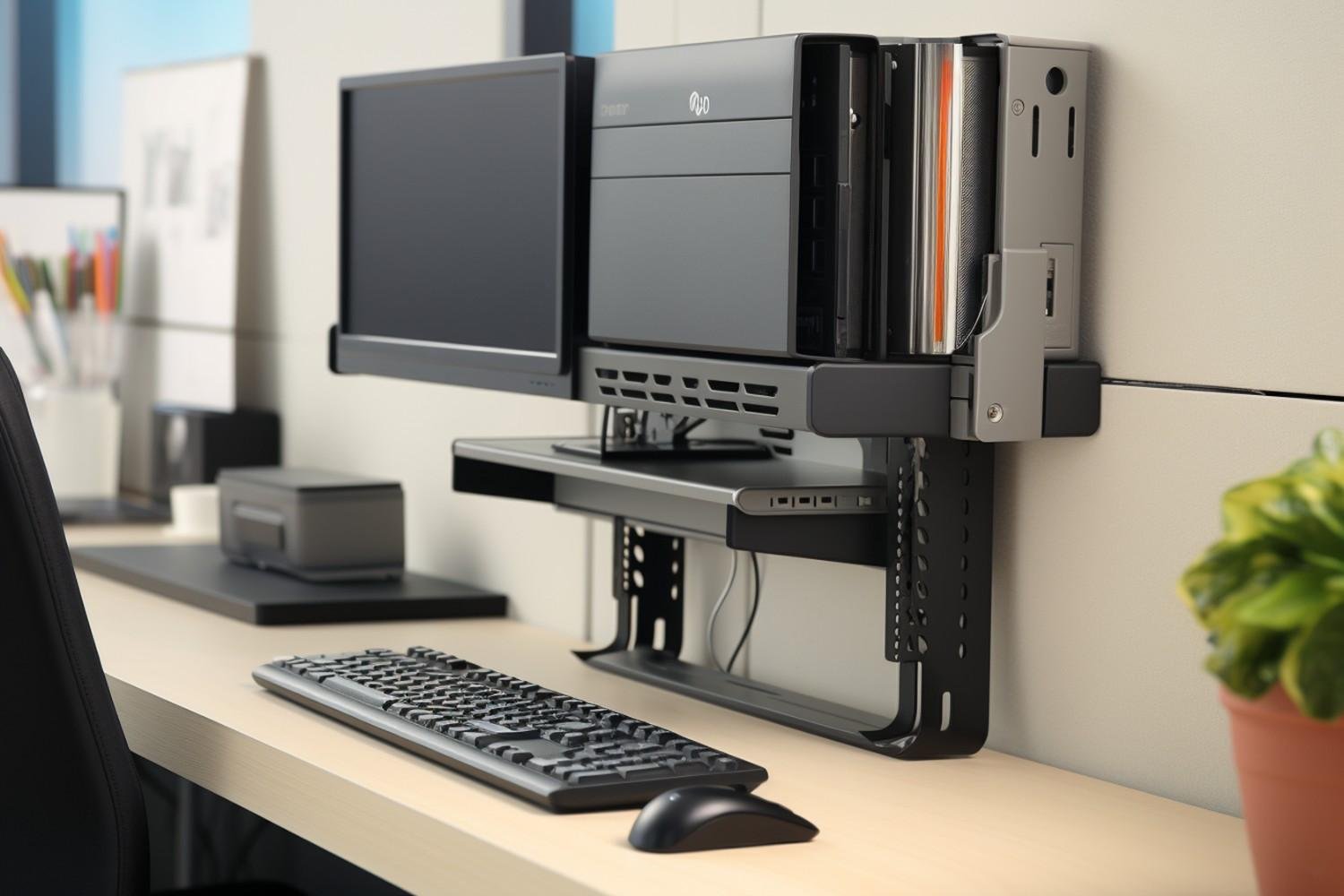
The MINIX K1 is a cleaner option when both computers support video through USB-C. It uses two USB-C 3.2 Gen 2 host inputs, provides HDMI output up to 4K120 HDR, and supports up to 100W USB-C PD 3.0. It also includes two USB-A ports and one USB-C peripheral port.
I would still confirm DisplayPort Alt Mode before buying because a USB-C connector alone does not guarantee video output.
Should You Choose HDMI, DisplayPort, or USB-C?
I choose HDMI for straightforward home-office setups. DisplayPort is usually the better fit for high-refresh gaming monitors and enthusiast desktops where DP 1.4 or DSC matters. USB-C is often the cleanest solution for laptops because one cable can carry video, data, and charging.
For dual monitors, I also check how many independent display signals each computer can provide. A dual-monitor KVM commonly requires two video outputs from each desktop, while laptop and Mac display limits vary by model.
This is one reason product specifications matter more than marketing terms such as “8K KVM.” A switch can advertise an impressive maximum resolution but still be unsuitable for a particular dual-monitor or high-refresh configuration.
Do You Need a KVM or Just a USB Switch?
If a monitor already has two inputs, I can connect each computer directly to it and use a USB switch for the keyboard and mouse.
A full KVM makes more sense when I want one action to switch both video and peripherals. That convenience is one reason to pay more for the best KVM switch for two computers instead of combining separate devices.
A USB-only switch can still be the smarter choice for gamers who want their GPU connected directly to the display while sharing a keyboard, mouse, webcam, or other accessories between machines.
What Features Matter Most Before You Buy?

I start with monitor count and connection type, then match the KVM to the resolution and refresh rate I actually use. EDID handling matters if I want windows to remain in place after switching. USB 3.x matters when sharing webcams, drives, audio devices, or other higher-bandwidth hardware.
For gaming, I also check HDR, VRR, G-Sync or FreeSync, and the maximum refresh rate at my exact resolution. High-end displays need enough bandwidth throughout the complete signal chain, including the GPU, KVM, cable, and monitor.
Power Delivery deserves attention with USB-C laptops too. The AV Access iDock B10 and MINIX K1 support up to 100W PD, but some gaming laptops and mobile workstations need more power than USB-C alone can provide.
Frequently Asked Questions (FAQs)
1. Can I Use One Keyboard and Mouse With Two Computers?
Yes. A 2-port KVM allows two computers to share one keyboard and mouse, along with supported displays.
2. Can a KVM Switch Support Two Monitors?
Yes, but you need a dual-monitor KVM, and both computers must provide the required video signals. Always check the laptop or desktop’s external-display capabilities first.
3. Does a KVM Add Lag While Gaming?
A quality hardware KVM should add little noticeable input delay. Display bandwidth and refresh-rate support are usually more important concerns for gaming.
4. Can I Use a KVM With Mac and Windows?
Yes. Many hardware KVMs work across Windows, macOS, and Linux, although individual Mac models can have external-display limitations that affect dual-monitor configurations.
5. Is HDMI 2.1 Important for a Gaming KVM?
It can be. HDMI 2.1 provides the bandwidth needed for combinations such as 4K at higher refresh rates when the KVM, GPU, monitor, and cables all support the required mode.
Final Thoughts
I would choose the KVM around the desk rather than the brand name. Level1Techs makes sense for demanding DisplayPort and mixed-OS workstations, AV Access iDock B10 stands out for a gaming desktop plus work laptop, UGREEN suits high-bandwidth HDMI setups, and MINIX K1 is attractive for two USB-C hosts.
The best KVM switch for two computers should preserve the monitor performance you already paid for, keep peripherals stable, and make switching easier than moving cables by hand.
Leave a Reply