
A nearly full laptop can make a simple download or software update feel urgent. When I see a low-storage warning, I resist the temptation to start deleting photos and documents. I first find out what occupies the drive, then make room while keeping the files I care about accessible.
If you are wondering how to free up storage on a laptop without deleting important files, the order of these steps matters: inspect, verify, move or offload, and only then clean up.
Find Out What Is Using the Space
Check storage on Windows
Open Settings, select System, then Storage. Windows groups usage into categories such as installed apps, temporary files, and documents. Open the largest category first. A game installation or video folder may explain the warning more quickly than hundreds of small files.
You can also open Cleanup recommendations from the Storage page. It suggests temporary files, unused apps, large files, and cloud-synced files. Treat its list as a set of suggestions to review, not a button to press without looking. In particular, check anything listed under Downloads before removing it; that folder often holds installers alongside documents you meant to keep.
Check storage on a Mac
Open the Apple menu, choose System Settings, then General and Storage. Review the storage categories and recommendations before changing anything. If a large photo library or collection of videos is responsible, clearing a small browser cache will offer little lasting relief. Knowing which category is growing helps you choose the right fix.
Keep Cloud Files Without Keeping Every Download
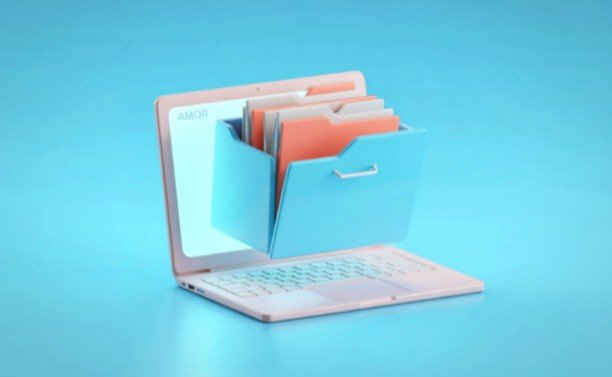
Cloud storage can free local disk space while leaving files available through your account. It helps only when files have finished uploading and the service is set to avoid keeping full local copies. For a separate way to improve startup speed, manage startup apps in Windows 11 so unnecessary programs do not launch when you sign in.
Use OneDrive Files On-Demand
On a Windows laptop, confirm that the file appears in your OneDrive folder and has finished syncing. For extra reassurance, sign in to OneDrive in a browser and open a sample file. Then right-click the synced file or folder in File Explorer and select Free up space. Its full local copy is removed, but the item remains visible and can download again when you open it online.
Do not select Delete as a substitute. Deleting a file inside a synced OneDrive folder can also remove it from the cloud and your other synced devices. Keep files you need without internet access downloaded on the laptop.
Review iCloud storage on a Mac
If you use iCloud Drive, check that the files have uploaded before relying on storage optimization. macOS can keep less-used files in iCloud and download them when needed. Review the options under System Settings, General, Storage, and your iCloud settings.
As with OneDrive, removing a local download is different from deleting the file itself. Deleting an iCloud Drive file can remove it from your other devices. Test access to important documents before changing how they are stored, and retain local copies of anything you need while offline.
Move Older Files to External Storage
An external drive is useful for finished projects, archived videos, and photo collections you rarely open. Start by copying a folder rather than moving it. Open several copied files directly from the external drive and check that the folder contains everything you expected. Only after confirming the copy should you remove the laptop’s version.
One external drive should not be the sole home for irreplaceable files. Keep another copy, such as a separate backup drive or trusted cloud backup. Label archive folders clearly so you can find a tax document or family photo months later. If a photo library, game, or creative application manages its own files, use that application’s relocation feature rather than dragging its internal folders around.
Clean Up Files You Do Not Need to Preserve

Temporary files and unused software are different from personal documents. On Windows, review Temporary files under Storage or configure Storage Sense to handle routine cleanup. Read each selected category before confirming. Removing a previous Windows installation, for example, can take away the option to return to the earlier version.
On a Mac, use the Storage recommendations to review large items and applications. On either system, uninstall software you no longer use through the normal app or system settings. Check whether its projects or saved data need a separate backup first.
The Recycle Bin or Trash may still occupy drive space, but emptying it makes those deletions harder to reverse. Review its contents before doing so. Cache cleanup can provide quick breathing room, although caches may grow again as you use the laptop.
Make the Space Last
After each change, check available storage again. If the drive fills rapidly, look for an ongoing cause: a cloud service downloading every file, repeated video exports, large game updates, or a Downloads folder that has become an archive. Set new files to save on another drive where appropriate, and periodically review which cloud folders must stay available offline.
Avoid deleting unfamiliar system folders or using an aggressive cleaner simply because it promises a large saving. Built-in storage tools and verified copies give you more control over what happens to your files.
Frequently Asked Questions
1. How to free up storage on a laptop without deleting important files?
First identify the largest storage categories. Make verified cloud files online-only, copy older files to external storage and confirm they open, then review temporary files and unused apps. Keep a separate backup of anything you cannot replace.
2. Will making a cloud file online-only delete it?
No, when the service has finished syncing and you use its local-space option correctly, the file remains in the cloud. You will generally need internet access to download it again. Deleting a file from a synced folder is a different action.
3. Why is my laptop still full after clearing temporary files?
Temporary files may represent only a small part of your usage, and some caches return. Recheck Storage for large apps, videos, downloaded cloud folders, and files in the Recycle Bin or Trash.
A Safer Way Forward
When my laptop runs short of space, I get the best results by dealing with the largest category first and verifying every copy before removing anything local. That is the practical answer to how to free up storage on a laptop without deleting important files: make deliberate room on the drive while keeping a reliable path back to what matters.
Leave a Reply