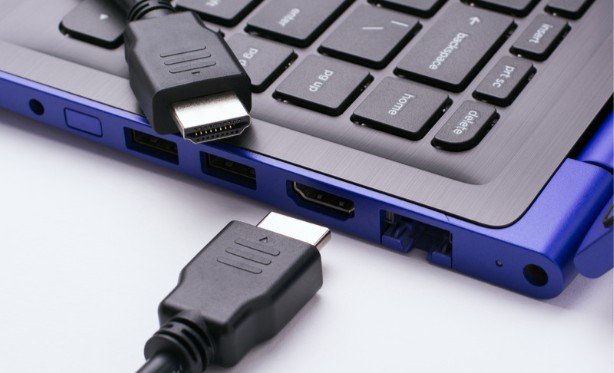
I used to think the obvious answer was an HDMI splitter: one plug for the laptop, two sockets for the monitors. But if I want a different window on each screen, that purchase would solve the wrong problem. The practical answer to how to connect two monitors to a laptop with one HDMI port depends on what other ports the laptop has and whether those ports can carry video.
A standard HDMI splitter sends the same picture to both monitors. To extend your desktop across two external monitors, connect one through HDMI and give the other a separate, compatible display connection. That might be USB-C, Thunderbolt, DisplayPort, or a USB graphics adapter.
First, Check What Your Laptop Can Support
Look at the sides of your laptop, then check its model specifications. Find the HDMI port and note any USB-C, Thunderbolt, Mini DisplayPort, or USB-A ports. Next, check the inputs on both monitors. You may need a USB-C-to-HDMI cable if the second monitor has HDMI but no USB-C input.
Do not assume every USB-C port sends video. Look for DisplayPort Alt Mode, Thunderbolt, or USB4 support in the laptop’s specifications. Also check how many external displays the laptop supports and at what resolutions and refresh rates. This matters especially if you plan to use a docking station or two high-resolution monitors.
Finally, decide whether you want two external monitors alongside the laptop screen or simply two visible screens in total. If you only need the laptop display plus one monitor, a single HDMI cable may be all you need.
Method 1: Use HDMI and a Video-Capable USB-C Port
Connect One Monitor to Each Output
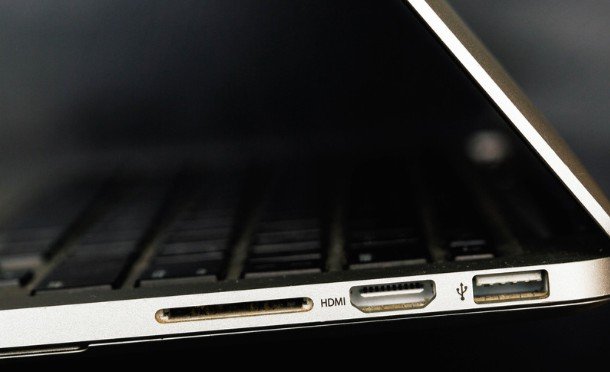
For many laptops, this is the simplest setup. Connect the first monitor to the laptop’s HDMI port. Connect the second to its video-capable USB-C or Thunderbolt port using the appropriate cable or adapter. Turn on both monitors and select the correct input on each one.
If your laptop supports the arrangement, your computer should detect two external screens. An adapter changes the connector type; it does not create video capability in a USB-C port that lacks it. Check that specification before buying.
Consider a Dock for a Permanent Desk Setup
A compatible dock can keep monitor cables, charging, and accessories together at your desk. Check the dock’s specifications for your laptop and operating system, including whether it supports two independent displays at your monitors’ intended resolution and refresh rate. Two HDMI sockets on a dock do not, by themselves, prove that it will extend to both screens.
Method 2: Use a USB Graphics Adapter
If your laptop has no second native video output, a compatible USB-to-HDMI graphics adapter may add one. Connect the first monitor through HDMI, then connect the adapter to an available USB-A or USB-C port and attach the second monitor to the adapter. Follow its manufacturer’s instructions for installing any required driver.
This route is useful for documents, email, and everyday office work. Check the adapter’s stated operating-system support, resolution, and refresh rate before purchasing. If you need a high-refresh gaming display, a native video output is generally the better choice.
Method 3: Use a Compatible MST or Thunderbolt Dock
Some Windows laptops can run multiple extended displays through a DisplayPort-capable USB-C connection and a compatible MST hub or dock. Thunderbolt docks may also support multiple monitors. The available combinations depend on the laptop, dock, monitor settings, and connection bandwidth.
Mac owners should check the display limit for their exact model before choosing a dock. A dock cannot automatically increase the number of external displays the Mac supports natively. Check its Mac compatibility as well, since a dock’s multi-monitor behavior can differ between operating systems.
Set Both Monitors to Extend Your Desktop
On Windows
Connect and power on both monitors. Open Settings, select System, then Display. Use Identify to see which numbered rectangle represents each screen. If a monitor is missing, select Detect and check its cable and input selection. If you often work away from your desk, you can also check laptop battery health to see how well the laptop supports your portable setup.
Under Multiple displays, choose Extend these displays. Drag the numbered rectangles until they match the monitors’ positions on your desk, then apply the arrangement. You can also choose a main display and adjust each monitor’s resolution, scaling, and refresh rate.
On a Mac
Open System Settings and select Displays. Arrange the screens to match your desk and check that they are set to extend rather than mirror. If a display is missing, confirm the Mac model’s display support, then check the adapter, cable, monitor input, and dock compatibility.
Why an HDMI Splitter Usually Disappoints
An HDMI splitter is appropriate when you want the same presentation or video on two monitors. It copies one output signal; it does not normally turn that signal into two independent desktops. An HDMI switch serves another purpose: selecting between connections. Neither is a substitute for a supported second display path when separate screens are the goal.
When shopping, look for explicit support for “extended displays,” your operating system, and your intended monitor resolution. Be wary of a product description that only says “dual HDMI” without explaining what each screen can show.
Frequently Asked Questions
1. Can I connect two monitors using only my laptop’s HDMI port?
You can use a standard splitter to show the same picture on both. For two independent desktops, you generally need another supported output or a compatible USB graphics solution.
2. What is the easiest way to learn how to connect two monitors to a laptop with one HDMI port?
Check whether the laptop’s USB-C port supports video. If it does, connect one monitor through HDMI and the other through USB-C. Then select Extend in your display settings.
3. Why does my laptop detect only one external monitor?
Check that both monitors are powered on, their inputs are selected correctly, and the cables are firmly connected. Confirm that the second port carries video, install any required adapter driver, and verify your laptop’s external-display limit.
The Setup I Would Choose
I would start with the laptop’s specifications before ordering anything. If its USB-C port supports video, I would use HDMI for one monitor and USB-C for the other. If it does not, I would look for a compatible USB graphics adapter for ordinary desk work. That short check saves me from buying a splitter that displays the same thing twice when I need room to work across separate screens.
Leave a Reply