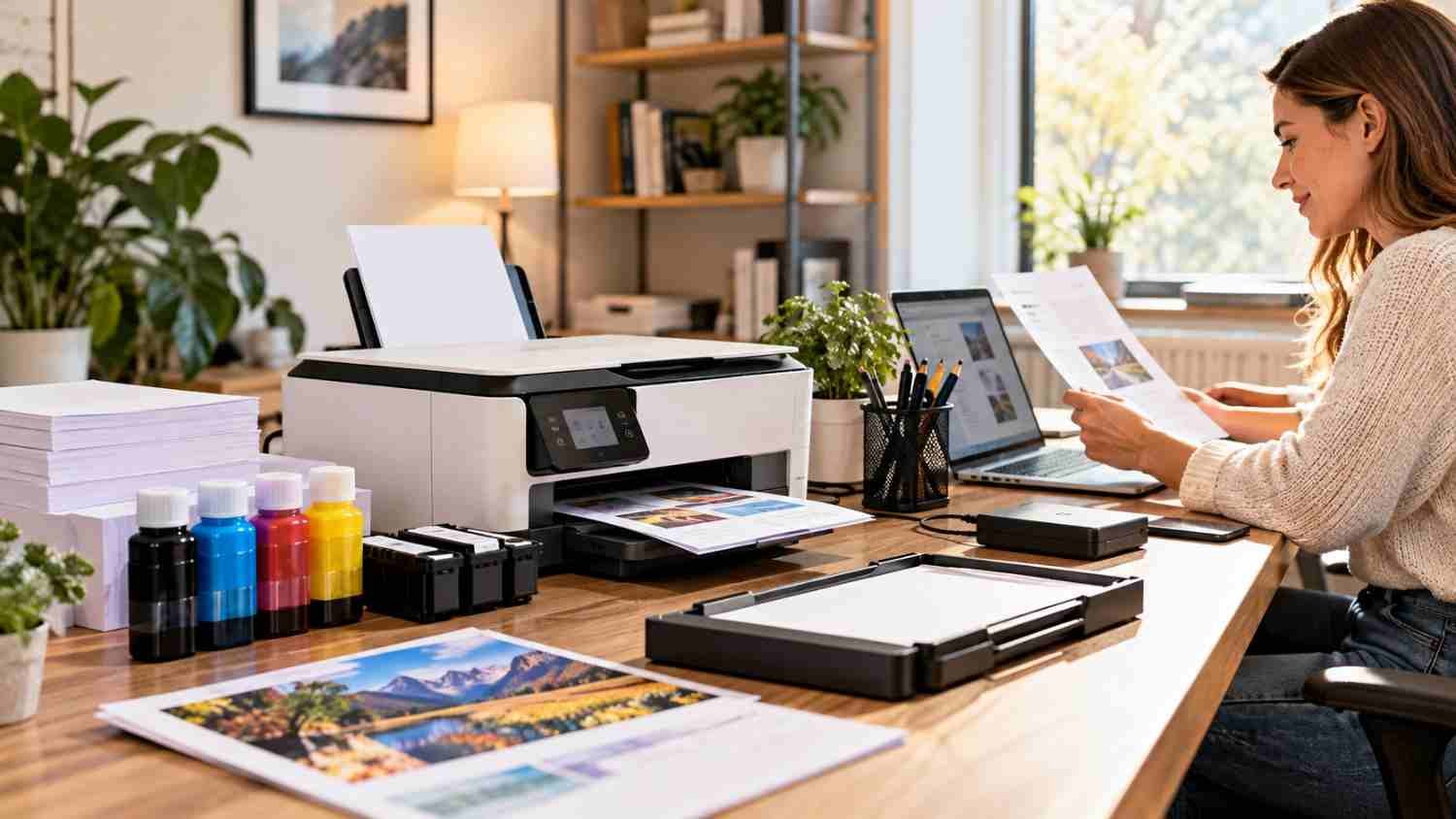
I used to think a home office printer needed little more than a flat surface and some paper. Then small annoyances started adding up. Paper lived in random drawers, spare cartridges disappeared when I needed them, and printer cables became part of the desk clutter. None was serious alone, but together they made simple printing feel unnecessarily inefficient.
I eventually realized the printer itself was rarely the problem. The surrounding setup was. A few well-chosen accessories made supplies easier to reach, freed desk space, and made printing less distracting. A few useful accessories remove friction without turning the workspace into storage.
Start With a Printer Stand That Fits Your Workspace
A printer stand is useful when desktop space is limited. Instead of letting the printer occupy the center of your work surface, a stand can create a dedicated zone and provide storage underneath.
Look for a sturdy surface that matches the printer’s footprint and leaves room for paper to feed and finished pages to exit. A rolling stand can help when scanning, copying, cleaning, or rearranging the room.
Under-desk carts are another practical option. They return the main desktop to your laptop, monitor, or notebook. Make sure the cart supports the printer’s weight and does not block ventilation or power access.
Give Paper a Dedicated Home
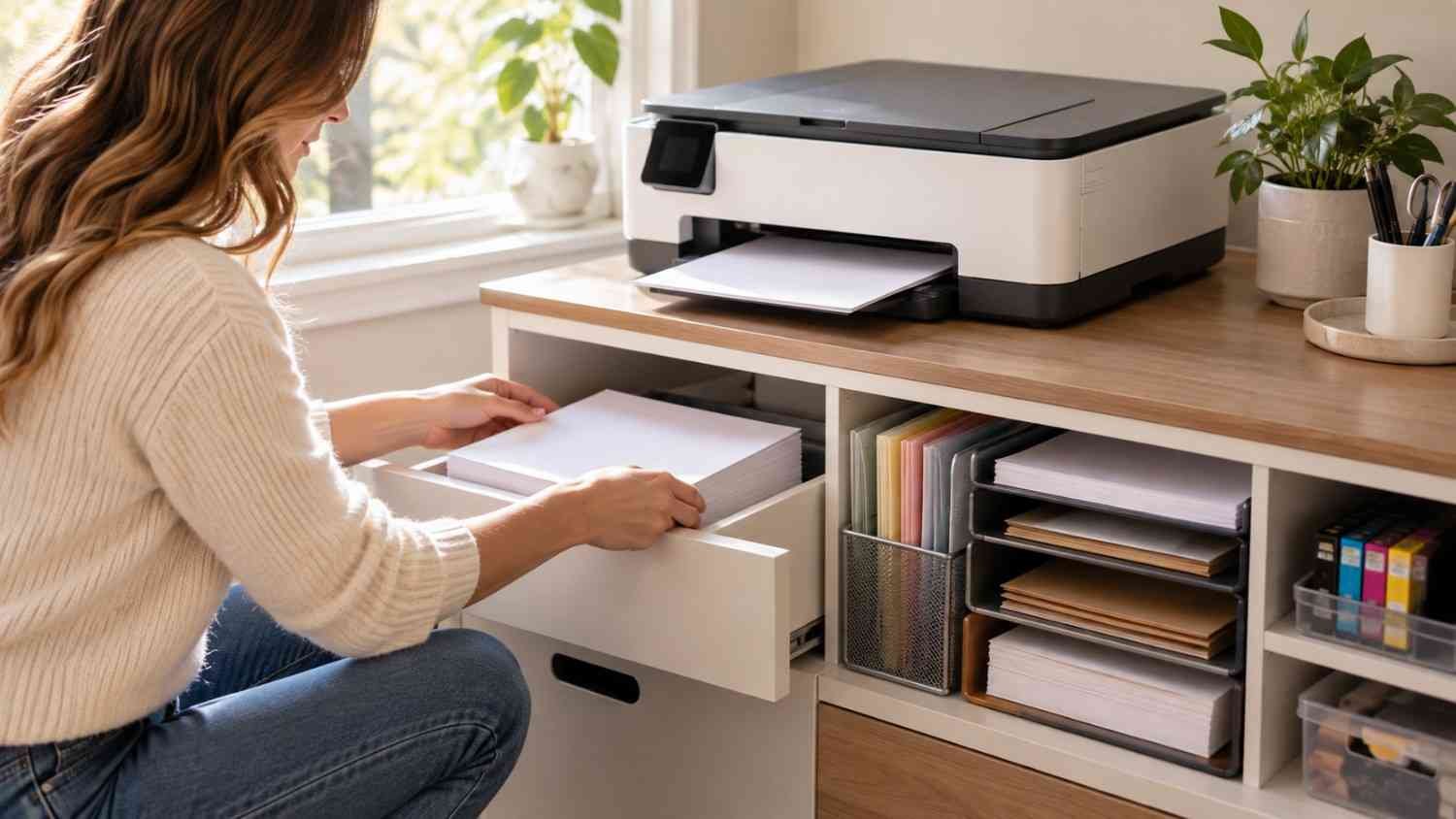
Loose paper can quickly take over a workspace. A desktop sorter keeps everyday printer paper separate from specialty stock.
If you print labels, envelopes, cardstock, or photo paper, separation helps. It reduces the chance of loading the wrong media and saves time when a particular job comes up.
Choose storage based on the paper you actually use. Oversized organizers can become another source of clutter. A compact vertical organizer may do more than a large filing unit.
Clean Up the Printer’s Cable Footprint
Printer cables rarely look messy when everything is new. Over time, power cords and USB cables can spread across the back of a desk.
Cable clips, reusable ties, sleeves, and an under-desk tray can keep connections routed along predictable paths. A USB-C hub or docking station can consolidate connections when laptop ports are limited.
Wireless printing can remove another layer of clutter. A Wi-Fi printer can be positioned where it works best.
Keep Ink, Toner, and Small Supplies Close
Running out of ink during an important print job can break your momentum. Keeping one replacement cartridge or toner supply nearby can prevent that interruption.
A small drawer or lidded box is usually enough. Store supplies according to the manufacturer’s recommendations, and avoid turning the printer stand into an overflowing inventory shelf.
A label maker can also earn its place in a busy home office. Labels can identify paper types, cartridges, cables, folders, and supplies. The goal is making things obvious and easy to find.
Choose Accessories That Support Printer Maintenance
Some accessories protect the workflow rather than directly improving print speed. A lint-free cloth, approved cleaning materials, and a place for printer documentation can make routine care easier.
Print quality should guide deeper maintenance. If an inkjet printer produces missing lines or uneven output, a nozzle check can help identify whether the printhead needs attention. Manufacturer guidance recommends using maintenance utilities and avoiding unnecessary cleaning because cycles consume ink.
That is why learning how to prevent inkjet printer nozzles from clogging can be more useful than repeatedly buying cleaning products. Good paper handling, storage, regular use, and following maintenance instructions can support reliable output.
Build a Setup Around How You Actually Print
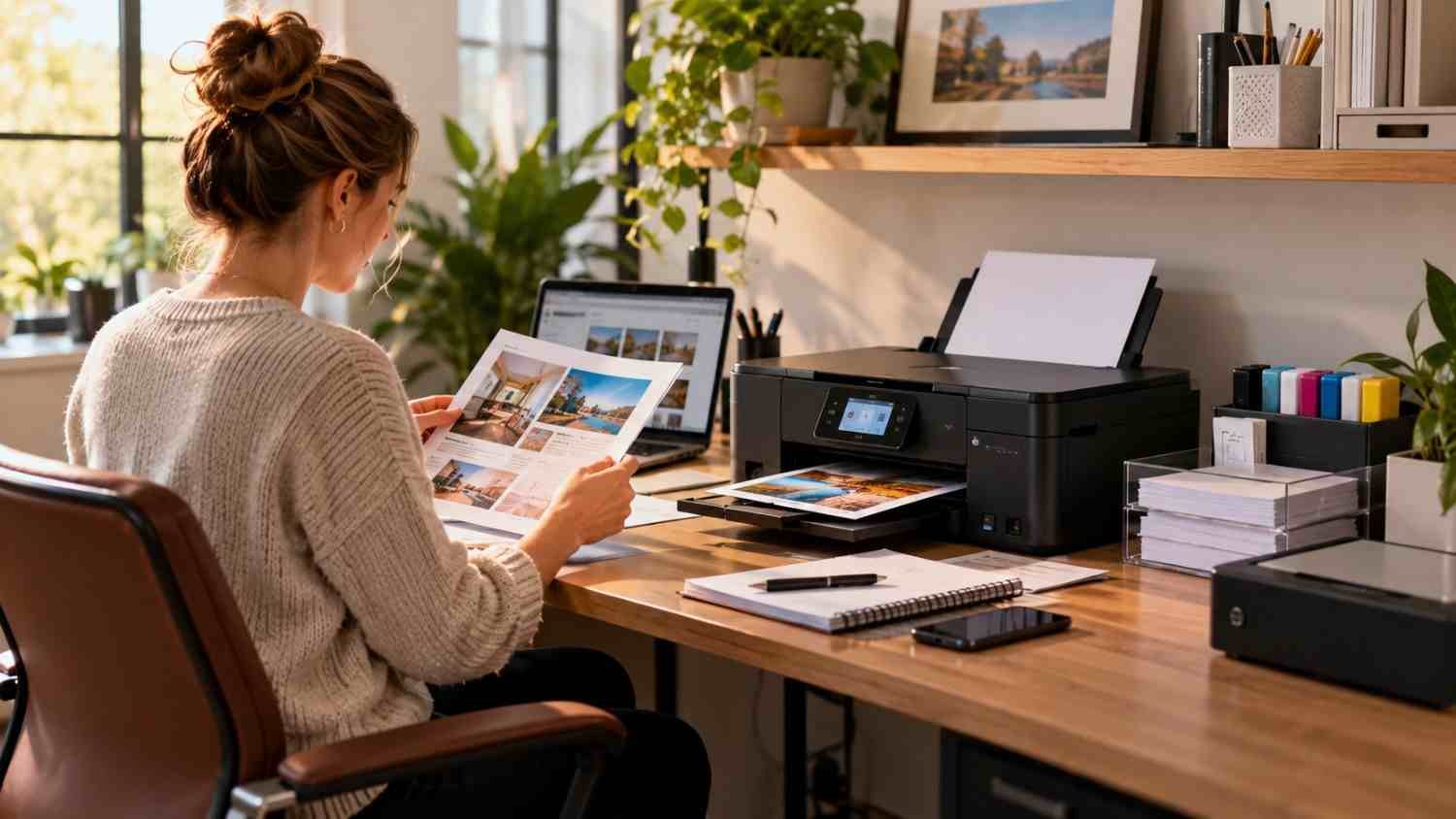
The most efficient setup matches your routine.
Someone who prints a few pages each week may need only a compact stand, paper organizer, and spare cartridge. A home business handling invoices, forms, labels, and documents may benefit from a rolling cart, multiple paper trays, and dedicated storage.
Think about the path a document takes. You create it, print it, collect the pages, and perhaps scan or file them. Accessories should make those steps easier, not create more decisions.
Keep frequently used supplies within reach, but leave clearance around the printer for paper loading, cartridge access, and ventilation. Wireless connectivity gives you more placement freedom.
Small Maintenance Habits Protect the Investment
Accessories cannot compensate for poor printer care. A tidy setup works best when the printer itself is treated sensibly.
Avoid storing paper where it can become dusty, damp, or bent. Keep cartridges protected until needed, and follow the manufacturer’s instructions for installation and maintenance. If your printer sits unused for long periods, check its recommended maintenance routine rather than assuming repeated cleaning is harmless.
For inkjet users, printer maintenance habits that extend printhead life can become part of the same organization routine. Keeping maintenance supplies together makes it easier to respond when print quality changes, while a nozzle check can distinguish a printhead issue from a paper or settings problem.
Why a Simpler Printer Setup Works Better
The best printer accessories quietly solve problems you have already noticed. A stand gives the machine a proper home. A paper organizer keeps supplies contained. Cable-management tools keep wires under control, while a spare cartridge prevents an avoidable interruption. None needs to be expensive or complicated.
What matters is creating a setup where printing feels like one smooth part of the workday instead of a separate chore. Once everything has a sensible place, the workspace becomes easier to use. Good organization does not demand perfection. It simply makes the next task easier to start.
FAQs: Best Printer Accessories for a More Efficient Home Office Setup
1. What is the most useful printer accessory for a small desk?
A compact printer stand is often the most practical choice because it creates dedicated space and may add storage without consuming more desktop area.
2. Do I need a printer stand with wheels?
Not necessarily. Wheels are useful when you need to move a multifunction printer for scanning, cleaning, or workspace changes. A stationary stand works well when the printer stays put.
3. How should I store spare ink or toner?
Keep cartridges in their original packaging and follow the manufacturer’s storage guidance. A cool, dry, protected area is generally preferable to an exposed desk drawer.
4. Are cable-management accessories worth buying?
They can be, particularly when printer cables compete with laptop, monitor, charging, or networking cables. Clips, reusable ties, and an under-desk tray can reduce clutter without major changes.
Leave a Reply