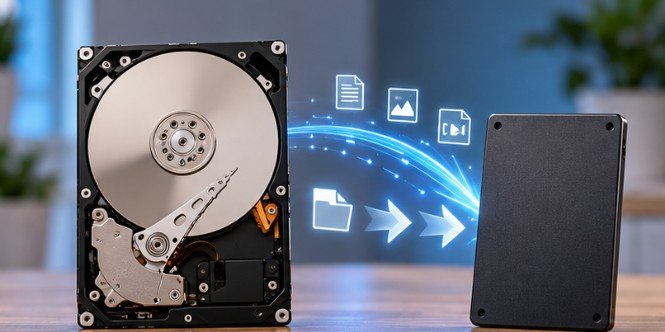
A slow hard drive can make an otherwise capable PC feel years older than it really is. Replacing that mechanical HDD with a solid-state drive can transform boot times, application launches, file searches, and general responsiveness without requiring a clean Windows installation.
The useful part is that you do not necessarily need to reinstall everything. Learning how to clone a hard drive to an SSD lets you transfer Windows, applications, settings, partitions, and personal files to the new drive in one operation.
The process is straightforward, but one mistake matters more than any other: choosing the wrong destination disk can erase data. Preparation is therefore more important than clicking the Clone button.
What Does Cloning an HDD to an SSD Actually Do?
Disk cloning creates a working copy of one storage drive on another. Unlike manually copying documents, a proper system-drive clone can reproduce the partitions Windows needs to boot, along with installed programs, user profiles, and operating-system files.
That makes cloning especially useful when an older US home or office PC still works well but is held back by mechanical storage.
The performance change can be substantial because SSDs have no moving read/write heads. The Storage Networking Industry Association explains that SSDs can process data across multiple NAND channels simultaneously, although actual performance depends on workload, drive fullness, controller behavior, block size, and other factors.
That distinction matters. Installing an SSD does not make the CPU faster, add RAM, or improve a weak graphics card. It primarily removes storage latency as a bottleneck.
Before You Clone Anything, Pass This Five-Minute Check
Start by comparing the amount of used space on the HDD with the usable capacity of the new SSD.
A 1TB HDD does not automatically require a 1TB SSD. If only 280GB is occupied, for example, a 500GB SSD may work if your cloning software can shrink the partitions appropriately. Leave reasonable free space afterward rather than filling the SSD nearly to capacity.
SNIA notes that SSD performance can decline as a drive becomes full because less spare area is available for internal operations such as garbage collection.
Next, confirm the drive interface. A 2.5-inch SATA SSD normally needs a SATA connection or USB-to-SATA adapter. An M.2 SATA drive and an M.2 NVMe drive may look similar but use different storage interfaces, so check your motherboard or laptop specifications before buying anything.
If you are also upgrading a compact desktop, component clearance can become equally important; our guide to low-profile CPU coolers for small form factor PCs covers another common space-restricted hardware upgrade.
Most importantly, make an independent backup before cloning. CISA recommends backing up important data to secure external storage or a properly vetted cloud service because hardware failure, accidents, malware, and ransomware can all cause permanent loss. A clone should never be your only copy of irreplaceable files.
What You Need for the Migration
| Item | What to Check |
| New SSD | Enough capacity for all used data plus free space |
| Connection method | SATA cable, NVMe slot, USB-to-SATA adapter, or NVMe enclosure |
| Cloning software | Supports your partition layout and operating system |
| Backup | Separate copy of important personal files |
| Power | Laptop charger connected or reliable desktop power |
| Encryption status | Check BitLocker or other full-disk encryption before starting |
Common cloning utilities include Clonezilla, Macrium Reflect, EaseUS Disk Copy, and SSD-manufacturer migration software. The right choice depends more on hardware compatibility and the features you need than on the brand name.
Clonezilla is particularly useful for people comfortable booting from removable media. Its official documentation supports disk-to-disk cloning and stresses that the destination disk will be overwritten.
How to Clone a Hard Drive to an SSD Step by Step
1. Back Up Files and Inspect the Old HDD
Before migrating, open the source drive and remove obvious temporary files, unused downloads, and applications you no longer need. This can reduce the amount of data the cloning utility must process.
Check the HDD for obvious file-system or hardware problems too. A failing source drive is not an ideal cloning candidate. If the disk is producing read errors, disappearing intermittently, or making unusual mechanical sounds, recovering important files should take priority over a routine migration.
2. Connect the SSD
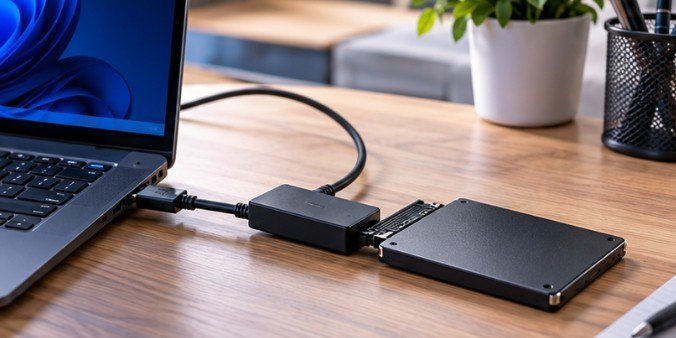
Desktop users can often install both drives internally. Laptop owners commonly connect the new SSD temporarily through a USB-to-SATA or USB-to-NVMe enclosure.
Open Disk Management or your cloning application’s drive information screen and identify both disks by capacity and model number.
Do not rely only on drive letters such as C: or D:. Those can appear differently in recovery environments.
3. Check Encryption Before Cloning
If BitLocker or another full-disk encryption technology is active, check the cloning software’s documentation before proceeding.
Some cloning programs understand encrypted volumes, while others work better after BitLocker protection is suspended or the drive is decrypted. Make sure you have your recovery information before changing encryption settings.
NIST’s storage-security guidance emphasizes data protection, recovery assurance, and encryption as important parts of managing storage infrastructure.
4. Choose the Source and Destination Carefully
Launch the cloning program and choose the old HDD as the source. Choose the new SSD as the destination.
Stop here and verify the model names and capacities again. The destination is normally erased during cloning. Clonezilla’s documentation repeatedly warns users about this because accidentally reversing source and target can destroy the original data.
5. Resize the Partitions
If the SSD is larger, select an option such as proportional resizing, auto-fit, or expand partitions where appropriate. If the SSD is smaller than the HDD but larger than the HDD’s used space, the software must be capable of shrinking the source partitions.
Pay attention to EFI, recovery, and system partitions. Do not simply copy the visible Windows partition while ignoring hidden boot partitions.
Modern UEFI systems commonly. The UEFI specification defines GPT with primary and backup partition tables and identifies the EFI System Partition used in UEFI boot environments.
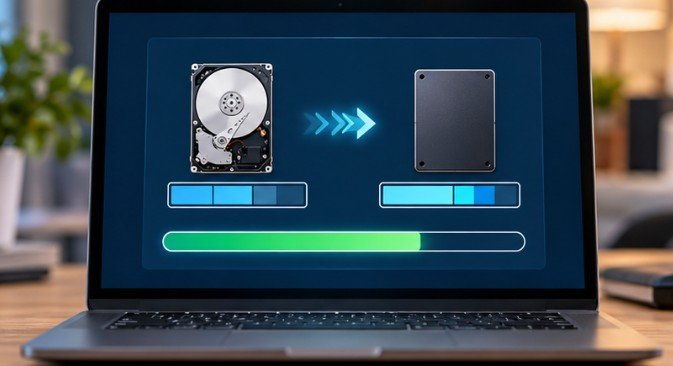
6. Start the Clone
Begin the migration only after checking the source and target one final time.
Keep a laptop connected to AC power. Avoid installing software, forcing Windows updates, disconnecting the SSD, or shutting down the machine during the operation.
Cloning time can vary substantially depending on the quantity of data, HDD condition, connection interface, and software being used.
What to Do After the Clone Finishes
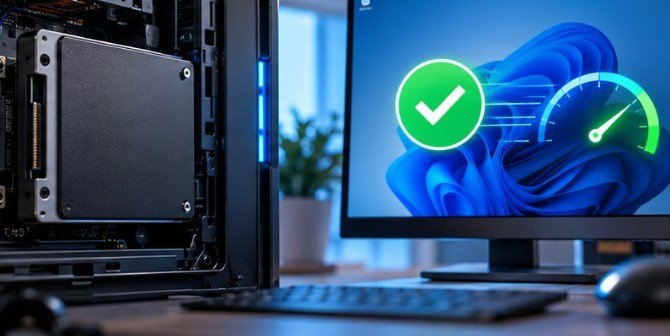
Shut the computer down completely rather than immediately continuing to work from the old HDD.
If the SSD will replace the original drive physically, install it and then boot the PC. If both drives remain installed, set the new SSD as the preferred boot device in UEFI/BIOS if necessary.
Clonezilla specifically warns that booting with both an original disk and an identical clone connected can create confusion because duplicated filesystems may share identifiers.
Once Windows starts from the SSD, verify your documents, applications, network connection, Windows activation, and available storage.
Do not immediately erase the old HDD. Keep it untouched until you have confirmed that the SSD boots reliably and your important files are present.
Why a Cloned SSD Sometimes Will Not Boot
A successful copy does not always equal a successful boot.
One common cause is an incorrect boot order. Another is failing to copy an EFI or system-reserved partition. Mismatches involving GPT, MBR, Legacy BIOS, or UEFI configuration can also cause trouble.
Do not randomly convert partition schemes as a first troubleshooting step. Identify whether the original installation used UEFI/GPT or Legacy BIOS/MBR, then verify that the firmware is trying to boot the SSD in the corresponding mode.
Disconnecting the old drive temporarily is also a useful test because it confirms whether Windows is genuinely booting from the new SSD rather than quietly relying on boot files stored on the HDD.
FAQ
1. Can I clone a larger HDD to a smaller SSD?
Yes, if the SSD can hold the HDD’s used data and the cloning program supports partition shrinking. Delete unnecessary data first and verify the resulting partition sizes before cloning.
2. Does cloning an HDD to an SSD copy Windows?
A full-disk clone normally copies Windows, installed applications, user files, and required system partitions. A simple file copy does not create the same bootable result.
3. Will cloning erase the new SSD?
Normally, yes. Cloning software typically overwrites the selected destination. Move any existing files off the SSD before starting.
4. Can I use my PC while the drive is cloning?
Some Windows-based tools allow it, but minimizing activity is safer. Avoid large downloads, updates, restarts, and major file changes until the operation completes.
Give the Old PC a Second Chance
The biggest advantage of learning how to clone a hard drive to an SSD is not that it saves a few installation steps. It can preserve a familiar Windows environment while removing one of the most noticeable bottlenecks in an older computer.
The safest migration is also the least dramatic: back up first, verify SSD compatibility, identify the source and destination by model number, preserve the required boot partitions, and test the new drive before erasing anything. The clone itself may take one operation. Getting those details right is what turns it into a reliable upgrade.
Leave a Reply