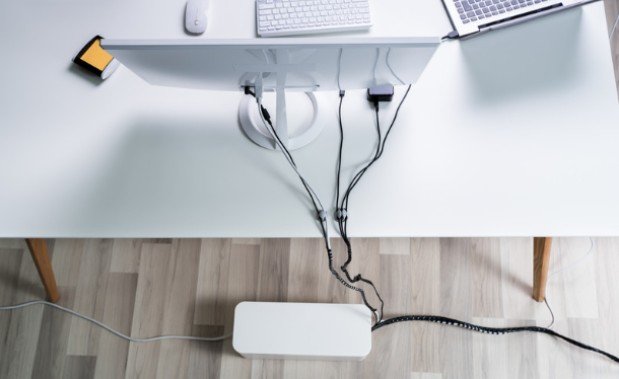
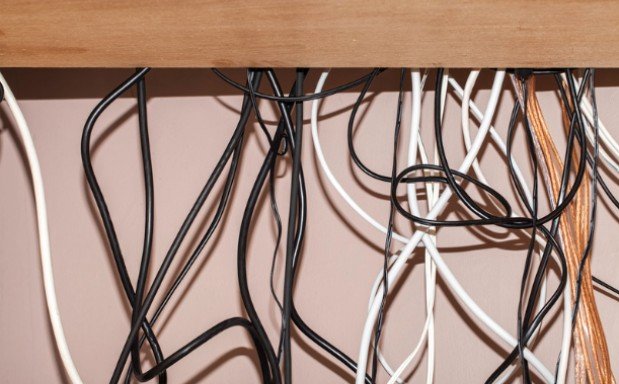
I used to push my desk against the wall and assume the cables were handled. Then I needed to unplug a monitor and found a knot of chargers, loose adapters, and cords I no longer used. Learning how to organize cables behind a home office desk starts with a better goal than hiding everything: give each cable a clear route and make the connections you use easy to reach.
A tidy setup does not require a new desk or an expensive kit. Most desks need a place for the power strip, a route for cables across the back, and a way to secure the final run to the wall outlet.
Start by Clearing and Planning
Unplug your equipment before moving cables. Trace each cord from device to outlet and remove anything that no longer belongs in the setup. Check for damaged insulation, bent plugs, or cords trapped beneath furniture, and replace damaged cables.
Next, decide where your monitor, computer, lamp, dock, and chargers will stay. Look for built-in grommets, channels, or openings in the desk and monitor arm. Use those routes before adding accessories.
Measure the path each cable must travel. A shorter cable can reduce the excess you need to store, but it still needs enough length to reach without pulling on a connector. If your desk changes height, plan for its highest position as well as its lowest.
Sort Cables by How You Use Them
Separate permanent connections, such as a monitor power cord, from cables you unplug often, such as a laptop charger. Permanent cords can follow a route beneath the desktop. Keep frequently used ends at the desk edge with clips so they do not fall behind it.
Label similar-looking plugs at both ends before bundling them. A small piece of tape marked “monitor” or “dock” can save time the next time you move equipment.
Build One Route Behind the Desk
For many setups, the simplest arrangement is an under-desk tray for the power strip and adapters, clips to guide cords toward it, and one managed power cord running to the wall. Position the tray where you can reach it without emptying the desk or crawling behind furniture.
Choose a tray or mounting method that suits the desktop. A clamp-on tray can work well when drilling is undesirable; a mounted tray may suit a desk designed to accept screws. Check the desk material, edge shape, and the tray’s stated capacity before installing it.
Run cables from each device toward the tray along the rear edge or underside of the desk. Secure them at intervals with clips or reusable hook-and-loop ties. Leave a little slack near plugs so moving a monitor or dock does not strain its port. Coil excess length loosely and keep it within the tray rather than letting it hang near your feet.
Pick the Right Organizer for Each Problem
Clips hold individual cords in place and keep charging tips within reach. Sleeves gather several cables that travel along the same path. A raceway conceals a visible run along a wall or desk edge. An under-desk tray holds bulkier items such as adapters and a power strip. These organizers are for accessible device cords; any changes to permanent electrical wiring should be handled by a qualified electrician.
You may need only two of these. Buying a full kit before mapping your cable routes can leave you with accessories that do not fit your desk.
Adapt the Setup to Your Desk
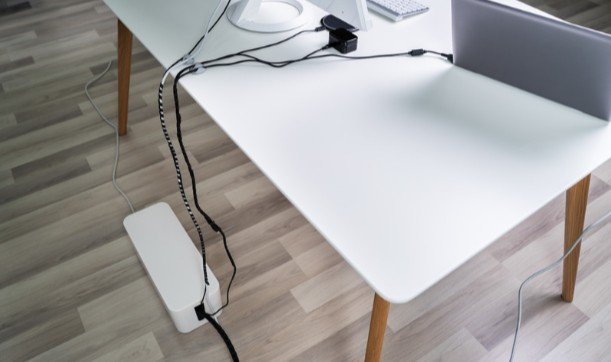
A desk against a wall can usually route cables straight down a rear leg. Keep the wall outlet accessible, and avoid pushing furniture against plugs or sharply bending cords.
For a desk in the middle of a room, consider which side is most visible before choosing a route. Guide the power cord down the least noticeable leg, then toward the outlet without crossing a walking path. Keep monitor cables secure while troubleshooting why an external monitor looks blurry, since a loose connection can affect the picture. A suitable floor cord cover may help where an exposed crossing cannot be avoided.
A standing desk needs an extra check. Attach the power strip and most device connections to the moving desktop so they rise together. Then leave an appropriate, controlled length between the desk and wall outlet. Raise and lower the desk through its full range while watching every cable, especially monitor and computer connections.
If you rent or regularly rearrange your workspace, clamp-on trays and removable ties make adjustments easier. Test any adhesive on an inconspicuous area and follow its removal instructions to protect the finish.
Check Safety Before You Call It Done
Cable management should make connections easier to inspect. Use a power strip rated for the equipment connected to it, and do not treat additional outlets as additional electrical capacity. Plug space heaters directly into an appropriate wall outlet, rather than a desk power strip.
Do not run cords beneath heavy furniture, pinch them between the desk and wall, or tighten ties until cables deform. Keep plugs accessible and avoid packing adapters so tightly that you cannot inspect them.
Finally, reconnect everything and confirm that each device works. Pull out your chair, move the monitor, and adjust the desk if applicable. If a cord catches or becomes taut, change its route now.
Frequently Asked Questions
1. What is the easiest way to organize cables behind a home office desk?
For a typical fixed desk, mount a suitable tray beneath the desktop, guide device cords into it with clips, and use reusable ties for excess length. Label the plugs and leave the connections accessible.
2. Should a power strip go on the floor or under the desk?
An under-desk location can reduce dangling cords and keep the floor clear if the strip is securely supported and accessible. Whichever location you choose, follow its instructions and keep it away from damage.
3. How do I manage cables on a standing desk?
Secure equipment cords to the moving desk, then allow enough length for the connection to the wall. Test the full height range before fastening the final cable run.
A Setup You Can Maintain
I consider the job finished when I can identify a plug without untangling five others. Once you know how to organize cables behind a home office desk, upkeep is simple: route each new cord along the existing path and remove old ones when devices leave. The result is a clearer workspace that still works when you need to change something.
Leave a Reply