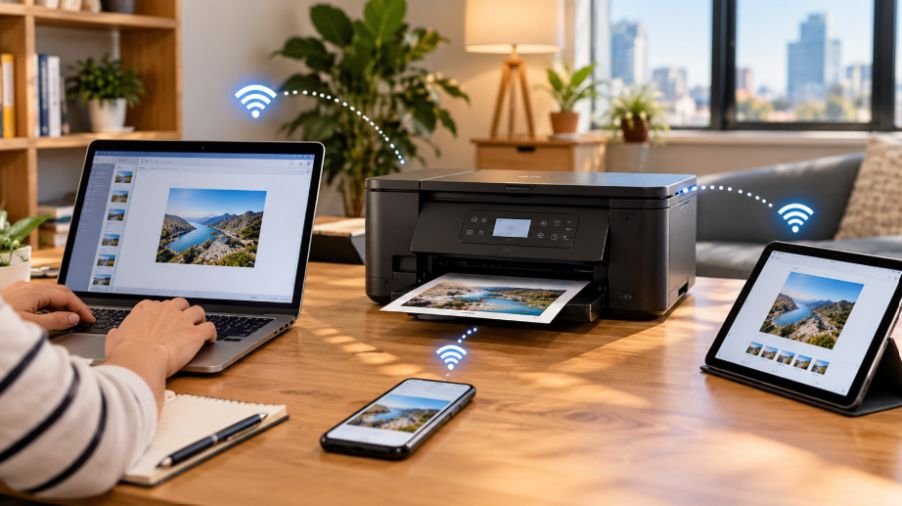
I used to think wireless printer setup would take a few minutes: switch on the printer, connect it, and press print. Then I tried connecting one printer to a laptop, an iPhone, and a tablet, and discovered how many small network details can interfere. The printer worked, but one device could not see it.
I found that the easiest approach is to stop treating every device as a separate project. The printer needs to join the Wi-Fi network first. Once that connection works, laptops, phones, and tablets can usually find it through printing tools or the manufacturer’s app. Following that order makes the process much less frustrating.
Start by Connecting the Printer to Wi-Fi
Turn on the printer. If it has a touchscreen or control panel, open its network or wireless settings and view available Wi-Fi networks.
Select your network and enter the password. Give the printer a moment, then check for a wireless icon, status message, or similar confirmation.
Some printers support WPS, while others use manufacturer software. The printer and your devices need to use the same local network. If a laptop is on one network while the printer is connected to a guest network, discovery can fail.
Add the Printer to a Windows Laptop
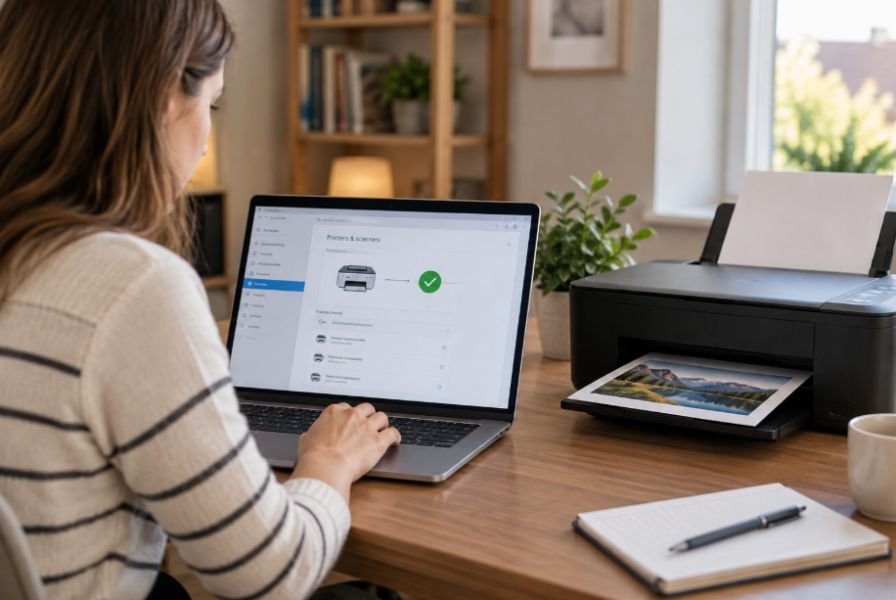
On Windows, open Settings, choose Bluetooth & devices, then Printers & scanners. Select Add device.
If you also use your laptop for a larger workspace, you can learn how to connect two monitors to a laptop with HDMI port for a more productive setup.
If the printer appears, follow the prompts. If it is not found, check Wi-Fi and confirm the laptop uses the same network.
Extenders can complicate discovery. Restart the printer, laptop, and router, then use Windows’ manual options or install the manufacturer’s software if detection fails.
Add It to a Mac
On a Mac, open System Settings, choose Printers & Scanners, then select the wireless printer.
Macs can communicate with compatible network printers without complicated driver installation. Manufacturer software can provide additional controls.
Send a test document after adding the printer. This confirms communication over the network.
Connect an iPhone or iPad.
When the printer supports AirPrint, connect the iPhone or iPad to the same Wi-Fi network, open the item, tap Share, and select Print.
Choose the printer, adjust available options, and send the job. You generally do not need a separate app for basic AirPrint printing.
If it does not appear, check Wi-Fi and AirPrint compatibility. Unsupported models may require the manufacturer’s iOS app.
Print From an Android Phone or Tablet
On Android, open the document or image, choose Print from the menu or sharing controls, and select the printer.
If it does not appear, check Android’s printing settings. Some printers use built-in features, Mopria, or a manufacturer’s app.
Apps can help with scanning, ink or toner levels, settings, and maintenance.
When Wi-Fi Direct Makes Sense
Not every printing situation requires a traditional home network. Wi-Fi Direct allows compatible devices to communicate directly with a printer when a router is unavailable, or a temporary connection is needed.
Wi-Fi Direct is different from normal home Wi-Fi. A shared network is easier when several devices need regular access.
For frequent multi-page work, researching best automatic duplex printers for everyday documents can help identify models that reduce manual page handling.
Fix Common Wireless Printer Problems
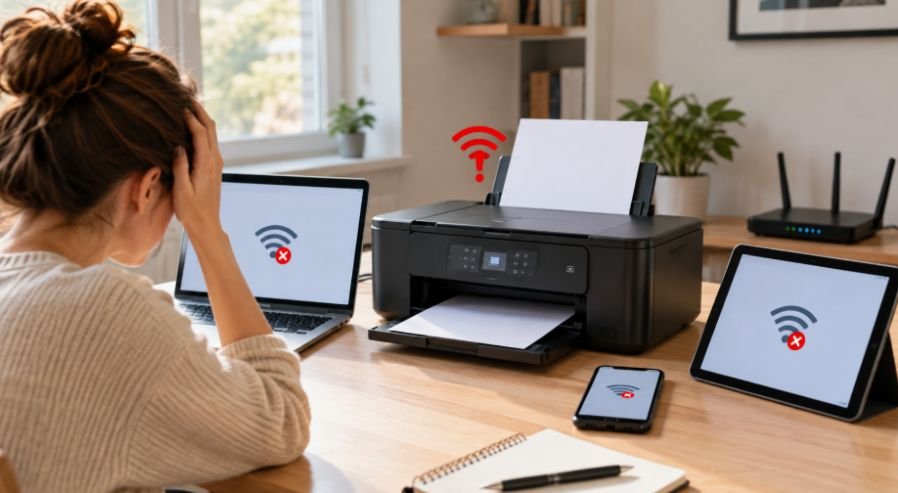
When wireless printing fails, start with the basics. Confirm that the printer is powered on and connected to Wi-Fi, then check the device’s connection.
If the printer disappears, restart the printer and the device trying to print. Restarting the router can help when the network is unstable. Check whether your router separates 2.4 GHz and 5 GHz networks, because some printers support only 2.4 GHz.
If a printer connects but remains invisible, network isolation, guest settings, or an extender may be responsible. Moving the printer closer to the router can help diagnose a weak signal.
Check for firmware, driver, or software updates. Once everything works, print a test page from each device.
The Setup Is Worth Getting Right
A smooth wireless printer setup is less about memorizing menus and more about establishing a clean connection in the right order. Connect the printer to Wi-Fi, verify it, then add each laptop, phone, or tablet one at a time.
Keeping the printer on your main trusted network and using the appropriate built-in printing feature or manufacturer app usually prevents unnecessary complications. If you are comparing printers before purchasing one, operating cost matters too. Learning how to calculate printer cost per page before buying can reveal differences that the purchase price alone does not show.
Frequently asked Questions
1. Do all wireless printers work with phones?
No. Check compatibility with AirPrint, Android printing services, or the manufacturer’s mobile app before buying. Some models support only certain platforms or require their own software for mobile printing.
2. Why can’t my laptop find my wireless printer?
The printer and laptop may be on different networks. Check Wi-Fi, guest-network settings, and router or extender configuration. Also restart both devices and confirm the printer shows a normal wireless connection.
3. Can I connect a printer without Wi-Fi?
Some printers support Wi-Fi Direct, Bluetooth, USB, or other connection methods, depending on the model. These options can be useful when a normal wireless network is unavailable, although their features and range vary.
4. Do I need a printer app?
Not always. Basic printing may work through built-in services, while manufacturer apps can add scanning, maintenance, setup, and monitoring. An app can also simplify initial wireless configuration on some printer models. Read compatibility requirements first. Some models may need updates. Check before setup.
The Setup Is Worth Getting Right
A wireless printer becomes easier to live with once its initial network connection is handled properly. A stable printer connection gives everyone a simple way to print when needed. The best setup is the one that quietly works in the background.
Take a few minutes to verify the network, test each device, and keep the printer software current. Those checks can prevent frustration later. Testing each device can prevent repeated troubleshooting later when printing matters most at home.
Leave a Reply