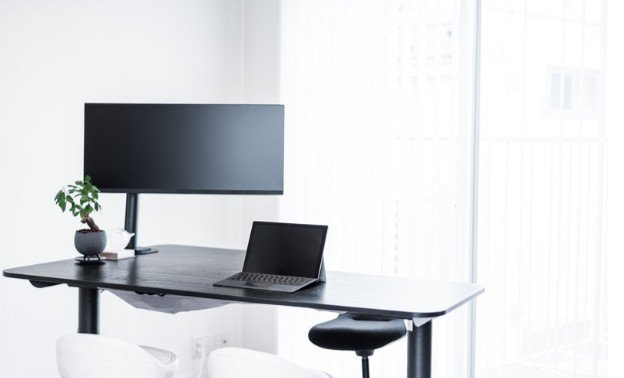
I know how frustrating it is to connect a second screen for a larger workspace, only to find that the text looks worse than it does on a laptop. When someone asks me why an external monitor looks blurry and how to fix it, I start by checking what looks wrong. A fuzzy desktop, one blurry app, and smeared movement point to different causes. Identifying the symptom first can save you from changing settings that were already correct.
Start With a One-Minute Blur Check
Look at the desktop, a page of text, and a moving window. If everything looks soft while standing still, check the monitor’s resolution and connection. If the desktop is sharp but one program is fuzzy, check that app’s scaling. If text looks clear until you scroll, investigate refresh rate and the monitor’s motion settings.
Also compare the external screen with another device, if one is available. A monitor that looks blurry with two computers may need an adjustment in its own menu. A screen that looks sharp with one computer but fuzzy with another points toward the computer’s settings or its connection. If you are using a USB-C adapter, confirm that the computer’s USB-C port supports video output.
Set the Monitor to Its Native Resolution
Check the selected display in Windows
Right-click the desktop and open Display settings. Select the external monitor in the display diagram, then set Display resolution to the option marked Recommended. Do this for the external screen itself; changing the laptop display’s resolution will not necessarily change the monitor’s.
An LCD panel looks sharpest at its native pixel resolution. If a 2560 × 1440 monitor receives a 1920 × 1080 image, it must stretch that image across its pixels. Text and fine lines can look soft as a result.
If the recommended resolution is missing, try a direct connection between the computer and monitor. Then check whether the cable, adapter, dock, computer port, and monitor input support the resolution and refresh rate you want.
Check the selected display on a Mac
Open System Settings > Displays and select the external monitor. Try the default resolution or another available setting that keeps text clear at a comfortable size. If the display cannot reach its expected resolution, test another compatible cable or port and check the adapter or dock’s limits.
Adjust Size Without Lowering Resolution
Resolution controls how many pixels form the image. Scaling controls how large text, windows, and icons appear. If everything is sharp but too small, adjust scaling instead of reducing the monitor’s resolution.
In Windows Display settings, select the external monitor and try its recommended Scale setting. A laptop screen and an external monitor can use different scale values because their sizes and pixel densities differ. On a Mac, choose a display scaling option that makes the interface comfortable to read, then compare the sharpness of text.
Mirroring can complicate this check when the laptop and monitor have different native resolutions. In Windows, press Windows key + P and try Extend. On a Mac, check Displays to see whether the screens are mirrored or used as separate displays. If the monitor becomes sharp when you extend the desktop, the mirrored setup was contributing to the problem.
Fix Text That Is Blurry in Only One App
If desktop text and other programs look crisp, avoid resetting the whole display. Close and reopen the blurry app after connecting the monitor or changing scale. An open window may not redraw cleanly when moved between screens with different scaling.
On Windows, signing out and back in can also help after a display or scaling change. For an older program that remains fuzzy, its Properties > Compatibility > Change high DPI settings menu may offer an app-specific adjustment. Try that only for the affected program and compare the result; one setting will not improve every app.
If text looks fuzzy everywhere, return to the monitor’s resolution and scaling settings before making app-level changes.
Check the Cable, Dock, and Monitor Menu
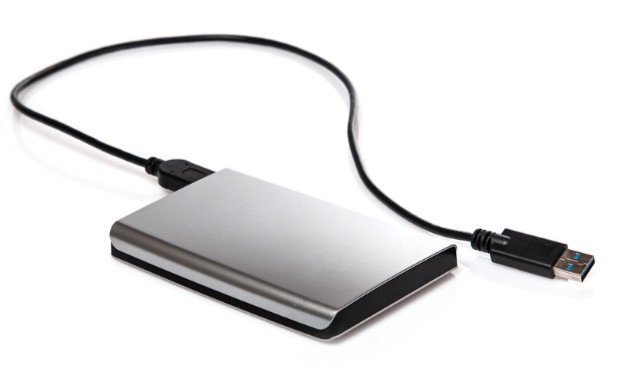
A loose connection or a limited adapter can prevent a computer from offering the monitor’s expected display modes. Reseat both ends of the cable, test another cable that supports the desired mode, and temporarily bypass the dock or adapter. If the correct resolution appears with a direct connection, check the removed device’s display specifications.
Open the monitor’s built-in menu as well. Reset unusually high sharpness or picture enhancements and look for a PC-oriented picture mode if you are using a TV as a monitor. A TV may also have a screen-fit or overscan setting that changes how the desktop fills the panel.
If the image looks clear while still but smeared during scrolling, check the available refresh rate in the computer’s display settings. You can also compare the monitor’s response-time modes. An aggressive mode may create visible trails, while a slower mode may make motion look less distinct.
Frequently Asked Questions
1. Why does my external monitor look blurry only when I mirror my laptop?
The two screens may have different native resolutions. Try extending the desktop and setting each display to its own recommended resolution. If you need mirroring, review the display options available for both screens.
2. Can scaling make a monitor blurry?
Scaling can affect how some apps render, particularly when you move windows between displays with different pixel densities. Keep the monitor at its native resolution, then adjust scale and reopen any app that remains fuzzy.
3. What should I do if the correct resolution is unavailable?
Test a direct connection and another compatible cable or port. Check the computer, dock, adapter, and monitor specifications for the resolution and refresh rate you need.
4. What is the quickest way to work out why an external monitor looks blurry and how to fix it?
First decide whether the entire image, only one app, or only moving content looks blurry. That observation tells you whether to start with resolution and connections, app scaling, or motion settings.
A Clearer Screen Starts With the Right Check
When I troubleshoot a fuzzy second screen, I check its native resolution first, then its scaling, display mode, and connection. I leave app settings until I know whether the problem affects just one program.
That order usually reveals why an external monitor looks blurry and how to fix it without making the setup more confusing. If the screen stays fuzzy across multiple computers and cables, I would then check the monitor’s own settings and support information.
Leave a Reply