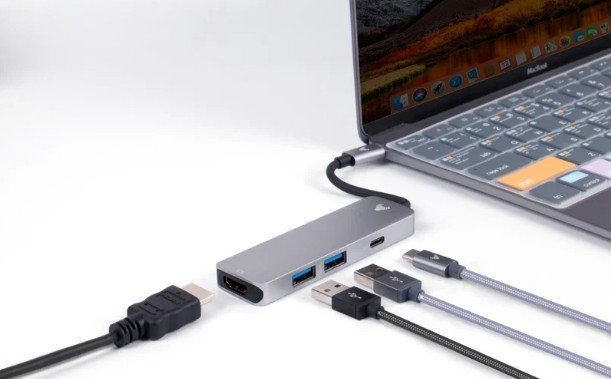
I once assumed that any USB-C port could connect a laptop to a monitor. The laptop charged through the cable, yet the screen stayed black. That experience taught me that the connector’s shape tells only part of the story.
If you’re wondering how to tell if your USB-C port supports video output, start with your device’s specifications, then confirm the result with a working monitor and video-capable cable.
Check Your Exact Device Model First
Your laptop’s official specifications are the strongest place to start. Find the complete model number on the device label or in your system information, then search the manufacturer’s support site. Two laptops sold under the same family name can have different ports, so match the full model or configuration.
Look under “Ports,” “I/O,” or “Display support” for phrases such as “DisplayPort Alt Mode,” “DisplayPort over USB-C,” or an explicit statement that the port supports an external display. A description such as “USB-C 3.2” tells you about the connection but does not, by itself, confirm video output. Likewise, Power Delivery means a port can handle charging; it does not establish that it sends a picture.
Check each port separately if your device has more than one. The specifications or manual may distinguish a video-capable port from one intended mainly for data or charging. Save the relevant support page before ordering a cable, dock, or portable monitor.
Read the Symbols Beside the Port
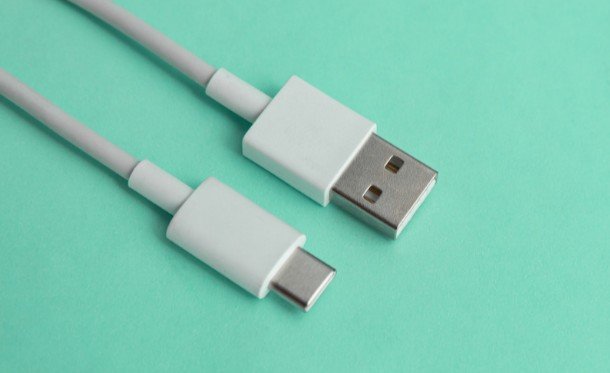
A DisplayPort symbol or “DP” marking beside a USB-C port is a useful sign that the port supports display output. A Thunderbolt marking is another strong clue. However, manufacturers do not label every capable port, and a small lightning-like mark can refer to charging on some devices. Verify the meaning in the manual rather than relying on appearance alone.
A battery icon indicates a charging function. A USB data symbol indicates a data function. Neither proves that a monitor will work. If you want to connect two monitors to laptop with one HDMI port, check whether its USB-C port supports video output before buying a dock or adapter. If there is no symbol at all, treat the capability as unknown until you check the specifications or perform a direct test.
Test It With a Known Working Display
A practical test can settle the question when the paperwork is unclear. Use a monitor with a USB-C video input and a cable specified for video, or connect a DisplayPort monitor with a suitable USB-C-to-DisplayPort cable. Plug directly into the computer first, leaving a hub or dock out of the test.
Set the monitor to the correct input. In Windows, open Settings > System > Display after connecting it; you can also press Windows + P to choose a display mode. On a Mac, open System Settings > Displays. If the external screen appears, you have confirmed that the tested port can send video through that setup.
If you get a black screen, do not immediately conclude that the port lacks video. Try another USB-C port, then a cable you know carries video. If possible, test the monitor and cable with another computer. Change one part at a time so you can identify what failed.
Why Charging Works but the Picture Does Not
Charging, data, and video are separate capabilities. A cable may power a laptop while lacking the connections needed for display output. Similarly, a monitor’s USB-C port may serve a purpose other than receiving video. Check the specifications for the computer port, cable, and monitor input.
This is especially important with portable monitors. Some need their own power source even when a computer provides the picture. If the screen turns on but reports “no signal,” confirm its selected input and test the video connection separately from its power connection.
Understand Adapters, Thunderbolt, and USB4
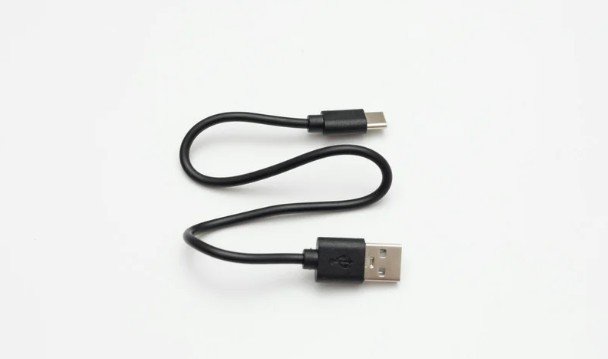
A basic USB-C-to-HDMI adapter converts a video signal your computer already provides. It cannot add native video output to a port that lacks it. Before buying one from a retailer, read its requirements as well as your laptop’s port specifications.
Thunderbolt and USB4 ports can carry display signals, but your achievable resolution, refresh rate, and number of monitors still depend on the particular computer, cable, dock, and display. Check your device maker’s stated display limits if you plan to run a high-refresh monitor or multiple screens.
If your USB-C port has no native video capability, you may still have options. Use the computer’s HDMI or DisplayPort connection if available. A compatible DisplayLink adapter or dock can also create an external display through USB data, but it uses a different method and requires appropriate software. Check operating-system support before purchasing.
Frequently Asked Questions
1. How can I confirm how to tell if your USB-C port supports video output when there is no icon?
Search the exact model’s official specifications for DisplayPort or USB-C display support. If the listing remains unclear, test that specific port directly with a known working video cable and compatible monitor.
2. Does a USB-C port that charges my laptop support a monitor?
Not necessarily. Charging confirms a power function, not video output. Check the port specifications and use a cable rated for video before drawing a conclusion.
3. Will any USB-C cable work with a monitor?
No. Choose a cable whose specifications explicitly cover video and the resolution and refresh rate you need. A charging wattage printed on the package alone is insufficient evidence.
The Practical Takeaway
When I check how to tell if your USB-C port supports video output, I follow the same order every time: confirm the exact model’s specifications, use any port markings as supporting clues, and test with a proven cable and display. That short sequence helps me avoid buying an adapter that cannot solve the problem—and helps pinpoint the real cause when a monitor stays dark.
Leave a Reply